Follow-ups
A follow-up (Seguimiento) is a pending case that originates from a call: a reshipment, a warranty claim, a formal quote. It has an owner, a priority, a due date and a code you can give to the customer.
Creating a follow-up
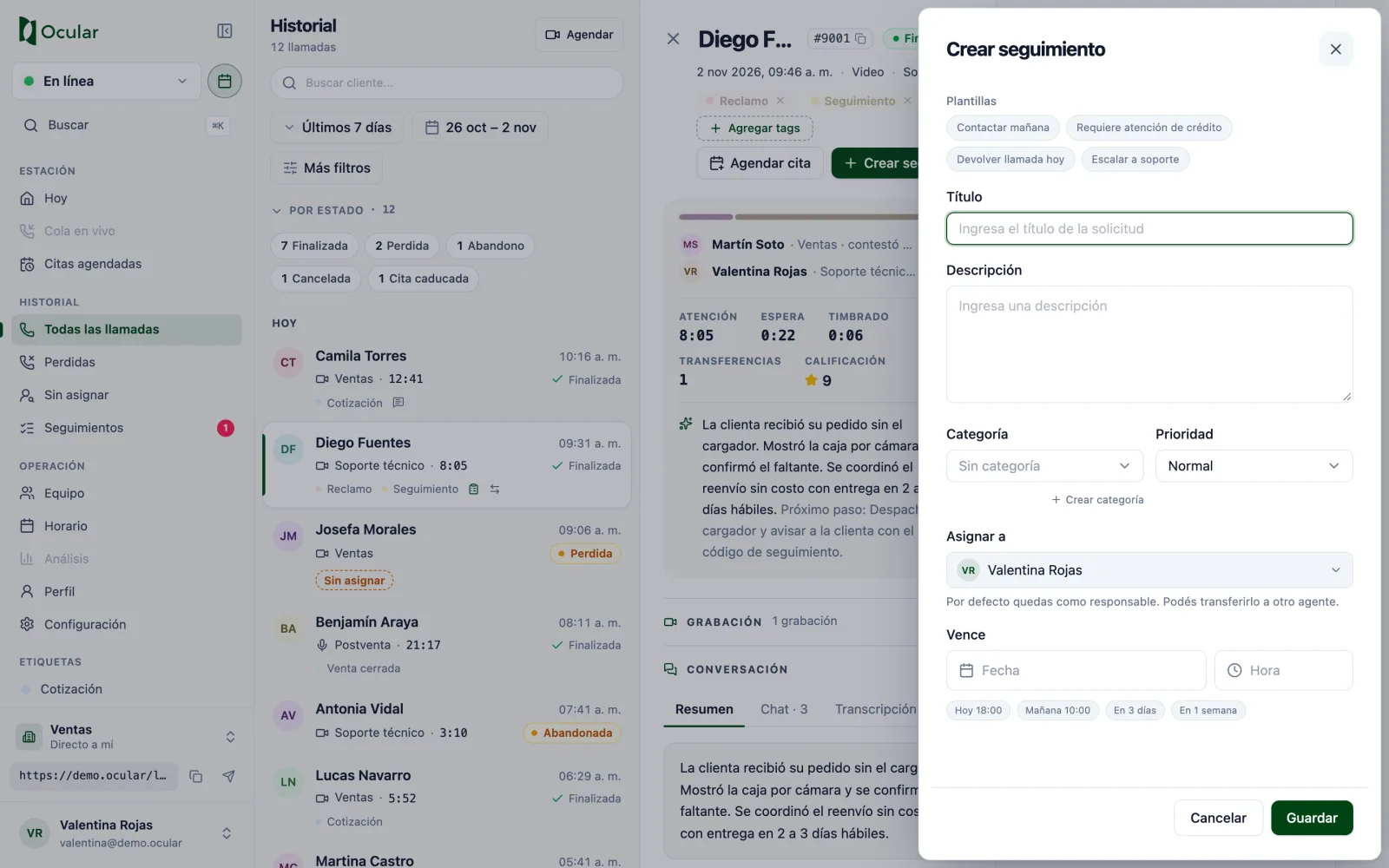
From a call's detail, from the call in progress, when ending a call or with Create follow-up in the Follow-ups view (there you first choose the call).
- Enter a
Titleand aDescription(both required).Templatesfill in the frequent cases with one click. - Choose
CategoryandPriority: Low, Normal, High or Urgent. - In
Assign toyou are selected by default; you can choose a colleague. - Set when it is
Due: choose a date and time or use the shortcuts (Today 18:00, Tomorrow 10:00, In 3 days, In 1 week). - Press
Save. If you often use the same combination, save it as a template.
Viewing and sorting your cases
- Tabs:
My pending(assigned to you),Involved(you created them or took part) andAll time. A dot indicates new activity. - Indicators: open, your pending, overdue and closed today.
- Filters: text, state, category, sort order and the
Overdue onlytoggle. - Search by code: type the 7-character code you gave the customer.
- List or Kanban: in Kanban, drag a card to another column to change its state.
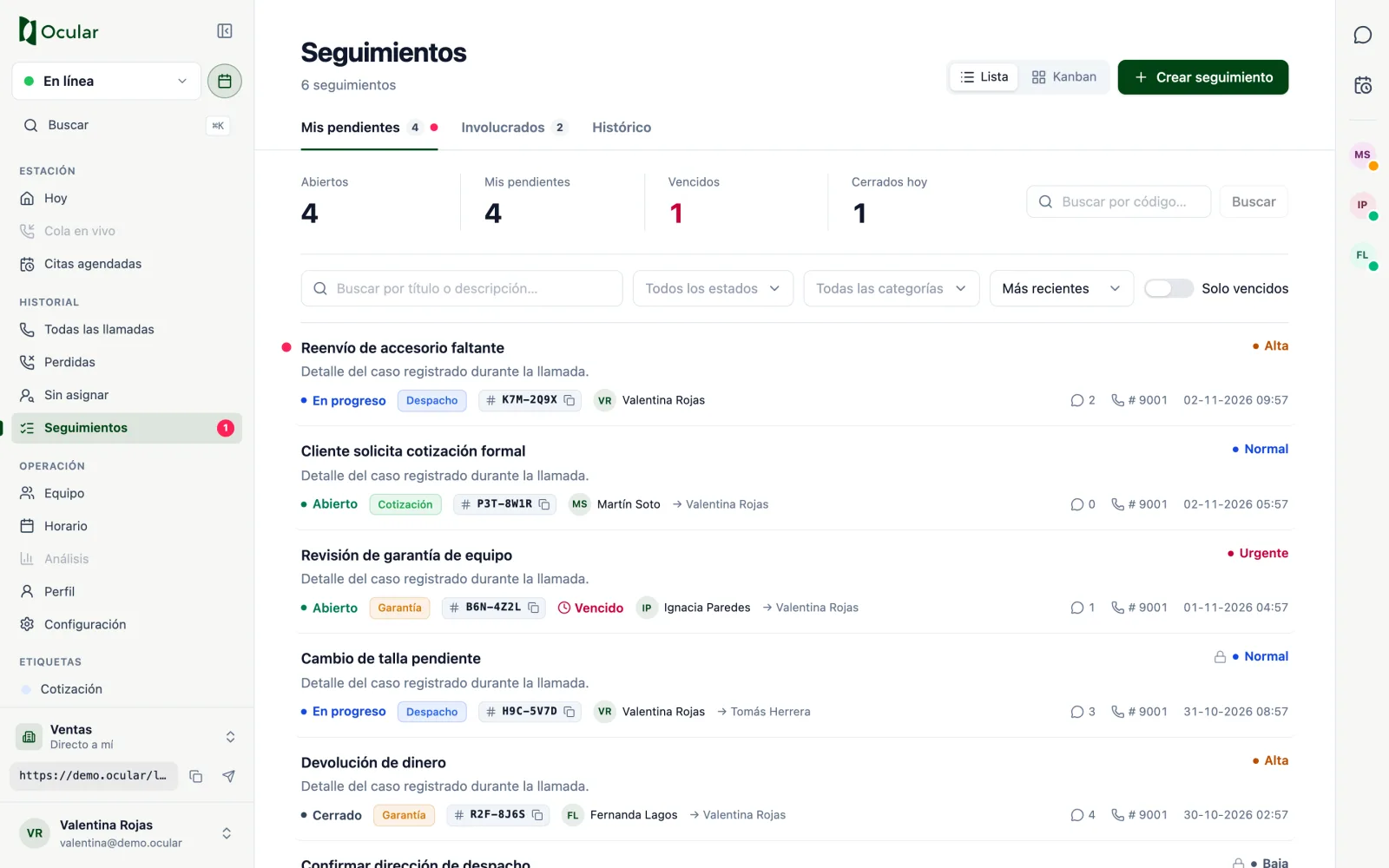
Follow-ups in list mode.
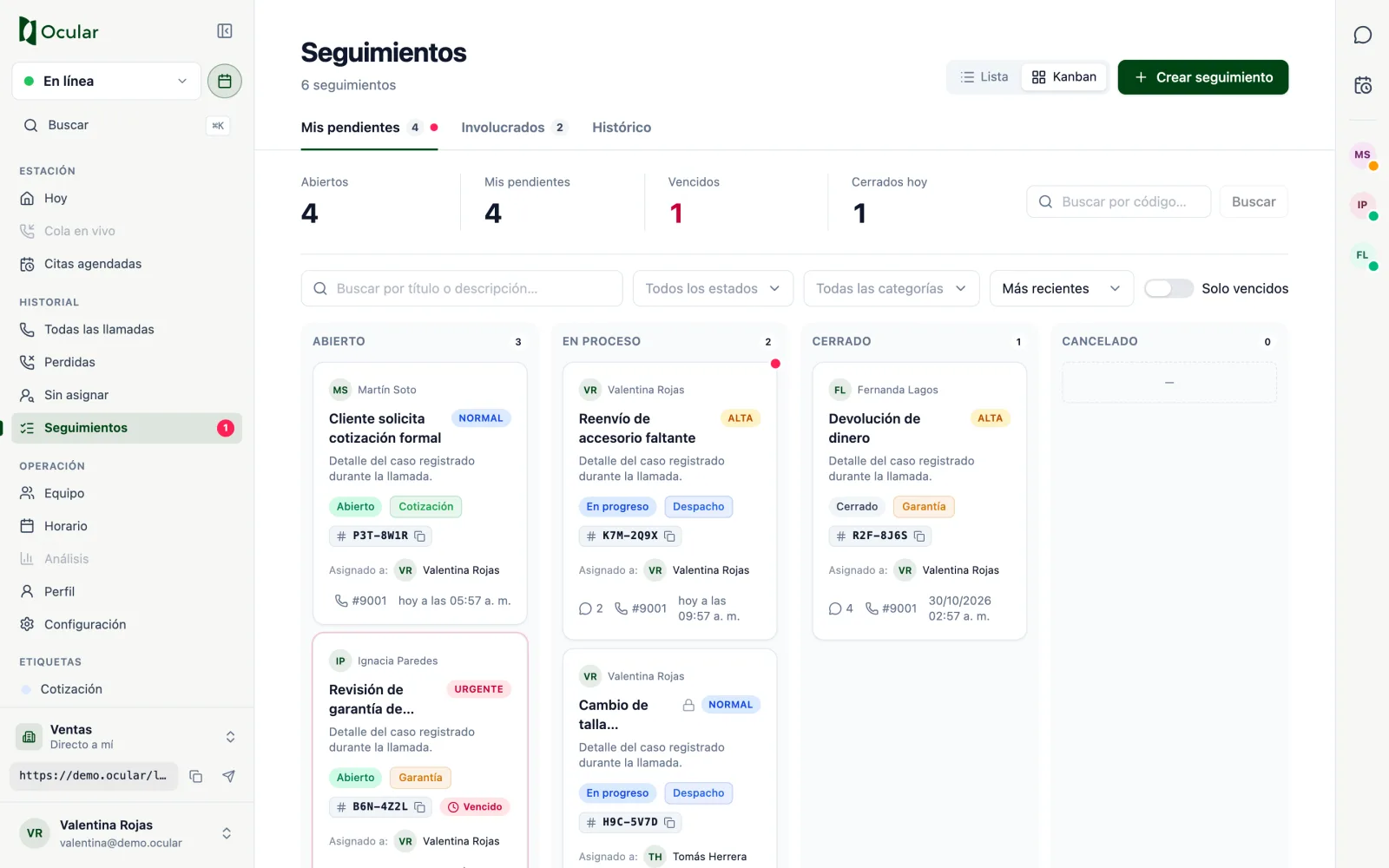
Kanban mode: Open, In progress, Closed and Canceled.
Working on a follow-up
- The
Start,Close,CancelandReopenbuttons change the state. Comments: record progress and reply to your colleagues.History: every change of state and owner.Attachments: upload images, PDFs or documents of up to 25 MB.- The chip with
#copies the follow-up code so you can give it to the customer. View calltakes you to the original call.
Who can make changes
Only the assigned owner can change the state, comment or attach files. If you transfer the follow-up to someone else, you lose that control. Only the person who created it can delete it.
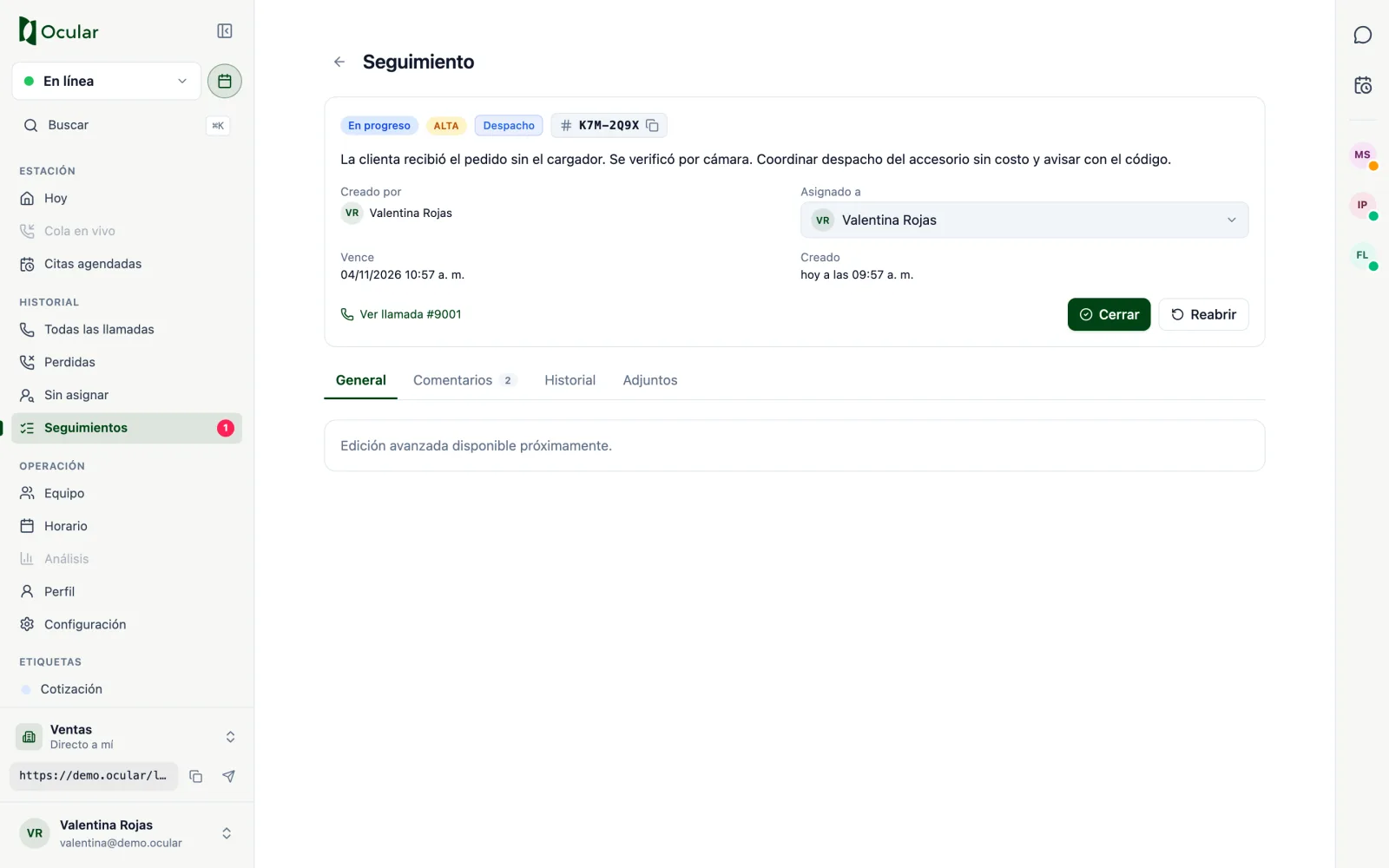
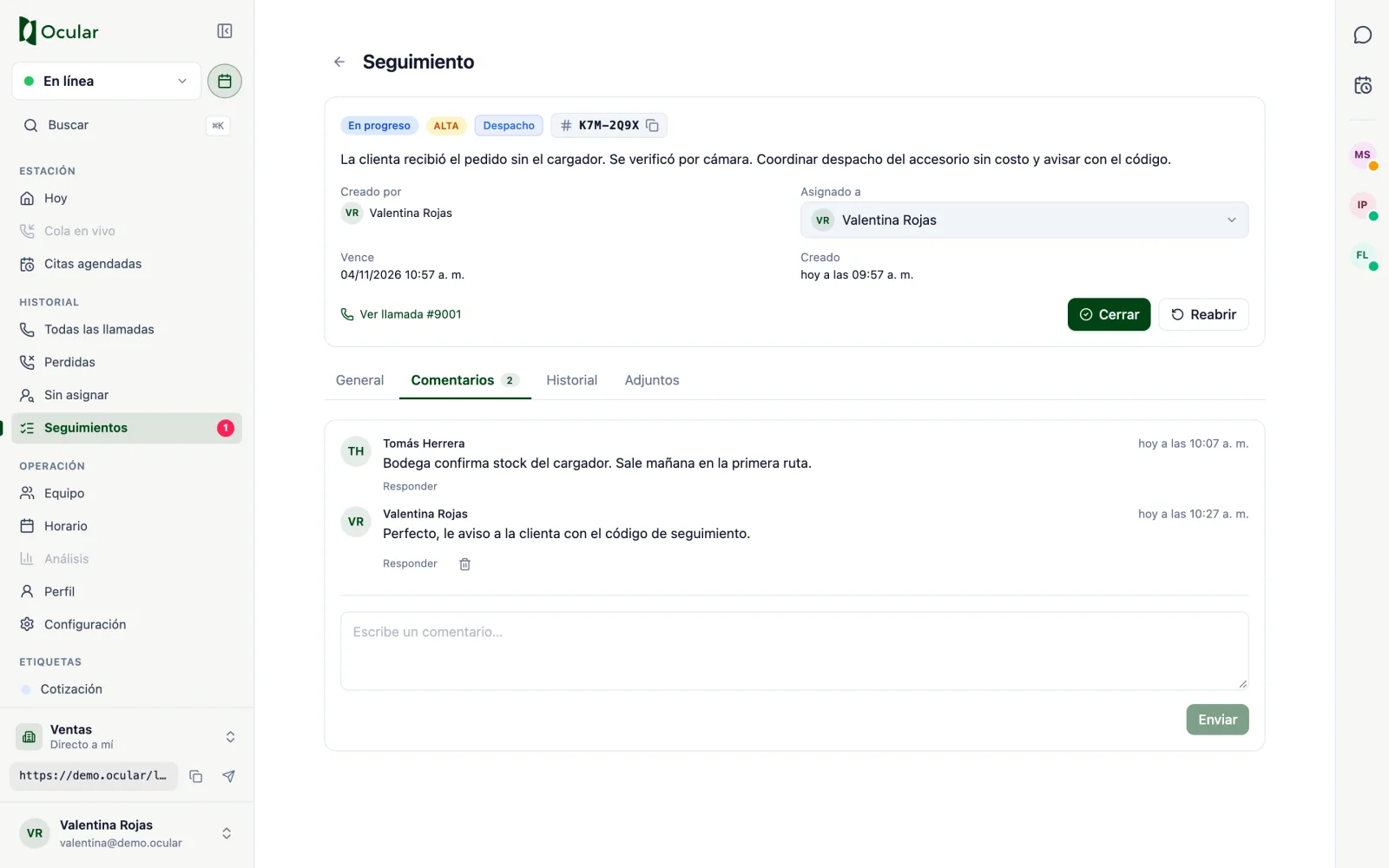
Comments between colleagues.