General requirements for video sessions with Ocular
For video sessions with Ocular to work properly, we recommend that devices meet certain requirements.
Hardware
-
A built-in webcam or an external USB camera in good working order. Most laptops have a built-in camera.
-
A built-in microphone or an external one if needed.
-
Speakers or headphones connected and working to hear the audio during the call.
Make sure your browser has permission to access the webcam and microphone. This is usually managed in the browser's privacy settings.
Software
Operating system: Ocular is compatible with most operating systems. Even so, the recommended ones are:
- Microsoft Windows
- Apple macOS
- Linux
Internet connection: For an uninterrupted experience, it is essential that the connection is high-speed and stable. The minimum verified speed is 10 Mbps.
In some cases, your computer's firewall may be blocking the connections required for video sessions.
Web browser
Ocular is a WebApp; our platform runs on browsers already installed on different devices with different operating systems such as Windows, Mac, iOS, and Android.
Therefore, the requirements depend on what each device needs at the hardware and software level to run the latest versions of each browser: Chrome, Firefox, Edge, and Opera.
Using applications in addition to the browser can affect device performance and impact the performance of the platform.
Minimum browser version requirements:
- Windows: 10 or later, with SSE3 support.
- macOS: Catalina 10.15 or later.
- Android: Oreo 8.1 or later.
- iOS: 14.4 or later.
Browser settings
Keep in mind that each browser has a settings section that controls access to certain resources of the device in use (camera, microphone, etc.). These come with default values and must be changed for the platform to work correctly.
In addition, some browsers include a "Sleeping Tabs" feature, which basically lets the browser disable tabs that are not in use (not being interacted with or minimized). This can cause the ringtone of a call not to be heard, a notification not to be shown, or the cammer's session to be temporarily disconnected.
Google Chrome
Permissions
- Open the site information panel.
- Go to Site settings.
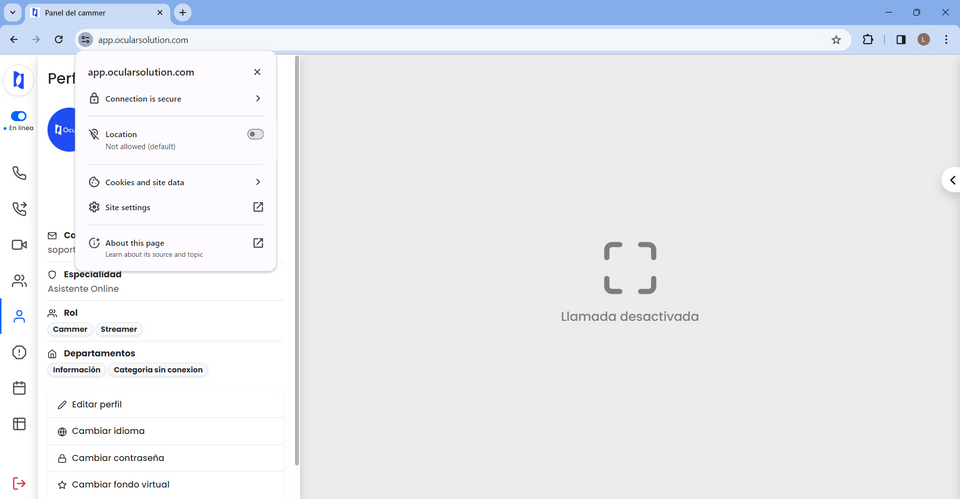
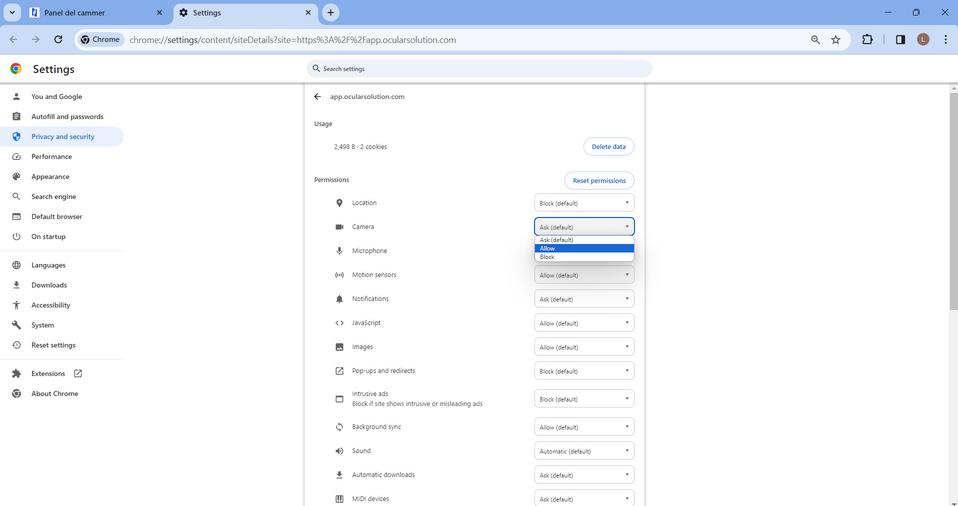
- Change the default permission for camera, microphone, notifications, and sound to Allow.
Performance
- Go to the Performance section.
- Disable Memory saver.
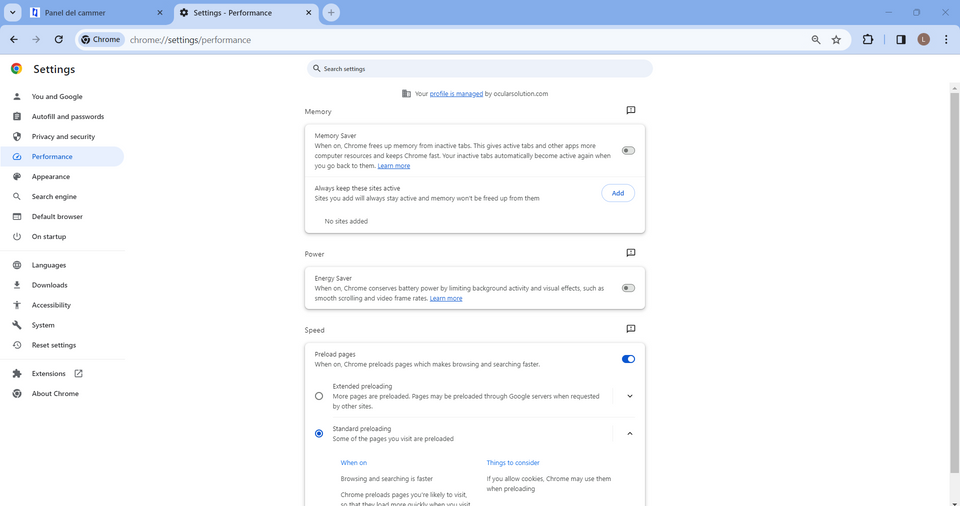
- In the Always keep these sites active section, click Add.
- Check the website "app.ocularsolution.com".
- Click the Add button.
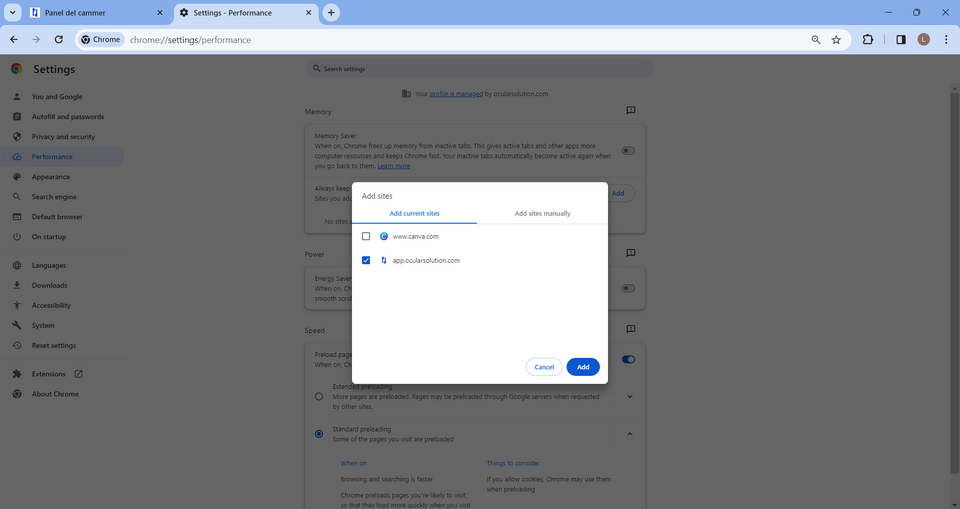
You can also add the URL from the Add sites manually tab
Microsoft Edge
Permissions
- Open the Site information panel.
- Go to Permissions for this site.
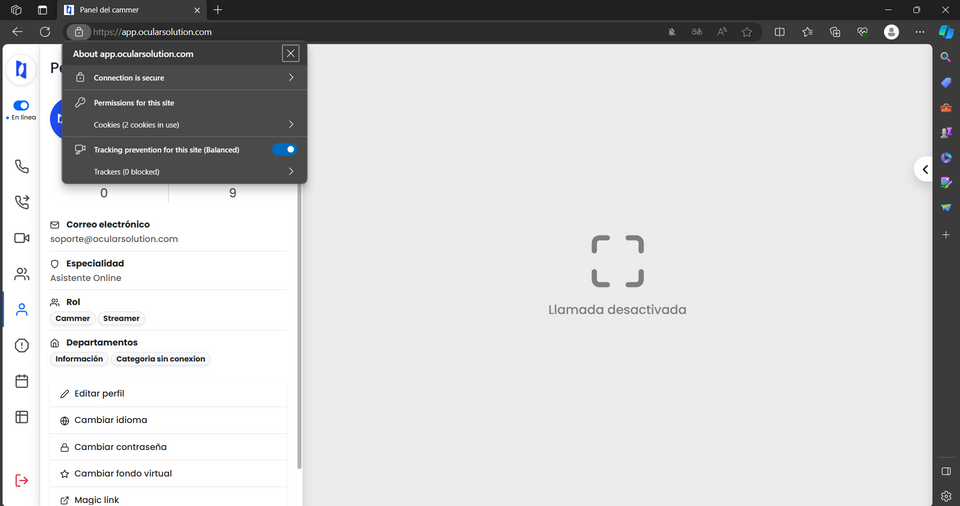
- Change the default permission for camera, microphone, and notifications to Allow.
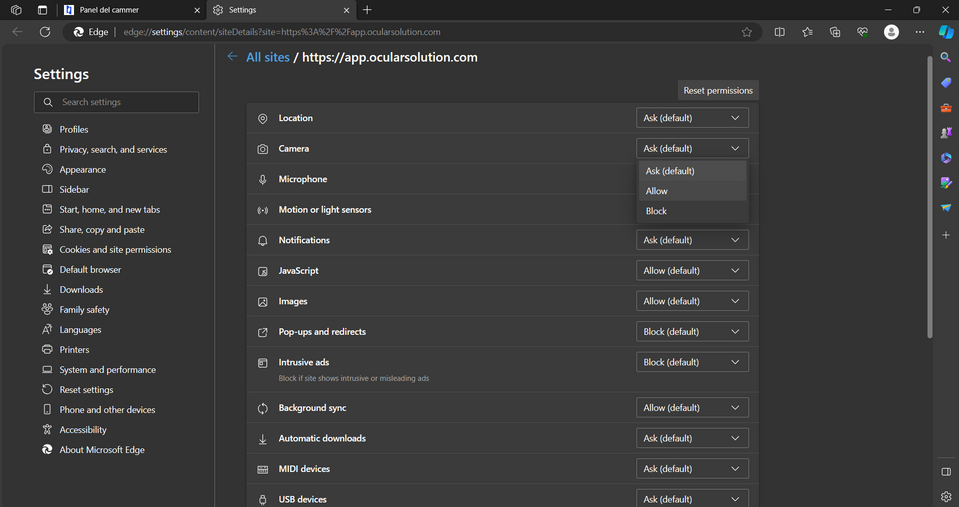
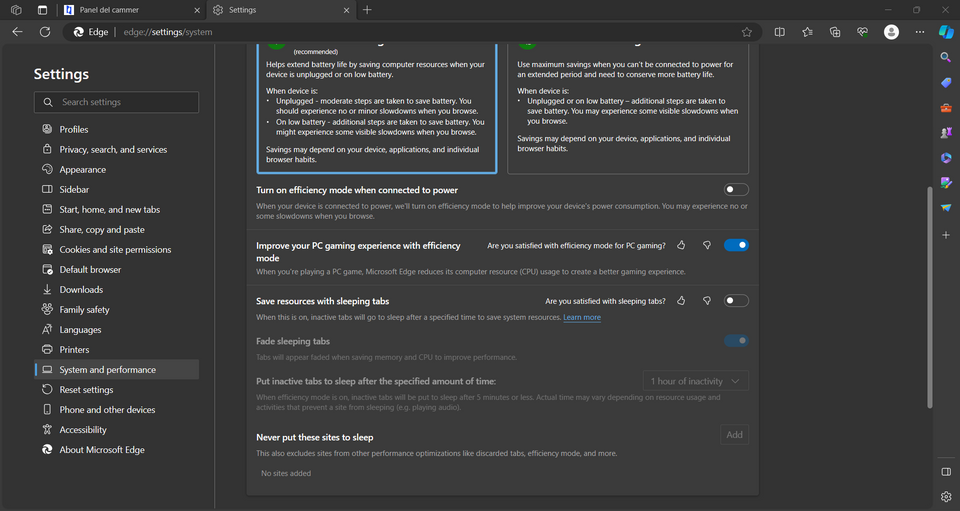
Performance
- Go to the System and performance section.
- Disable Save resources with sleeping tabs.
Mozilla Firefox
Permissions
The browser always asks for permissions the first time you access the platform
- Check the Remember this decision box.
- Select Allow.
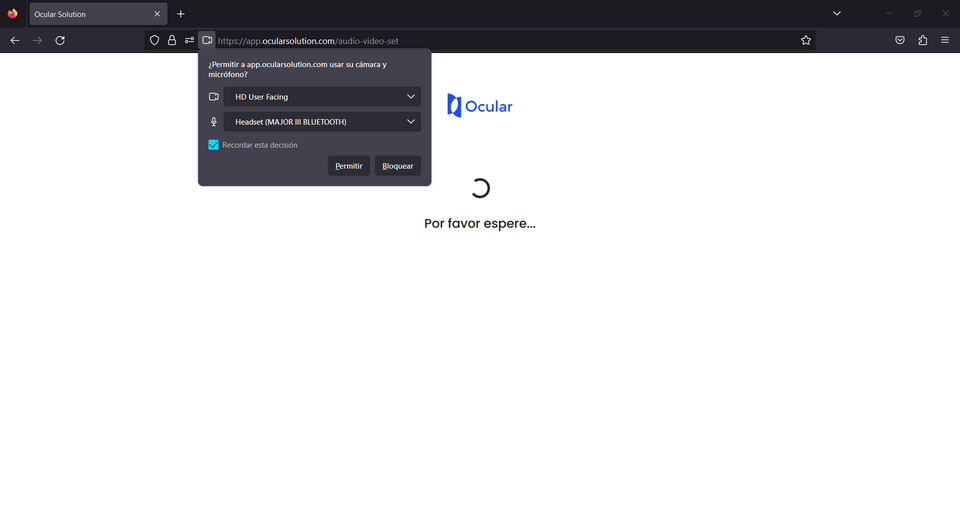
It is important to check the remember this decision option, since the browser may ask you again when you try to answer a call within the platform.
- Go to the Protections section.
- Select Protection settings.
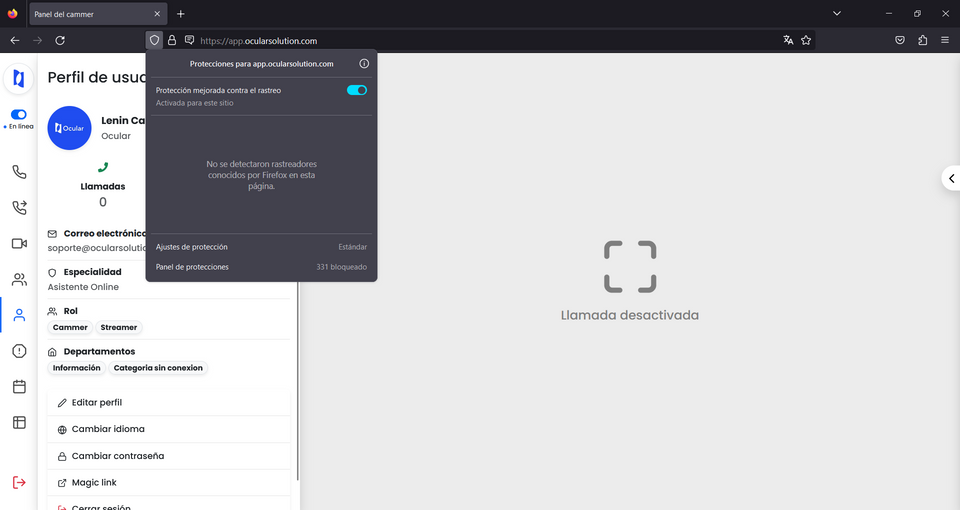
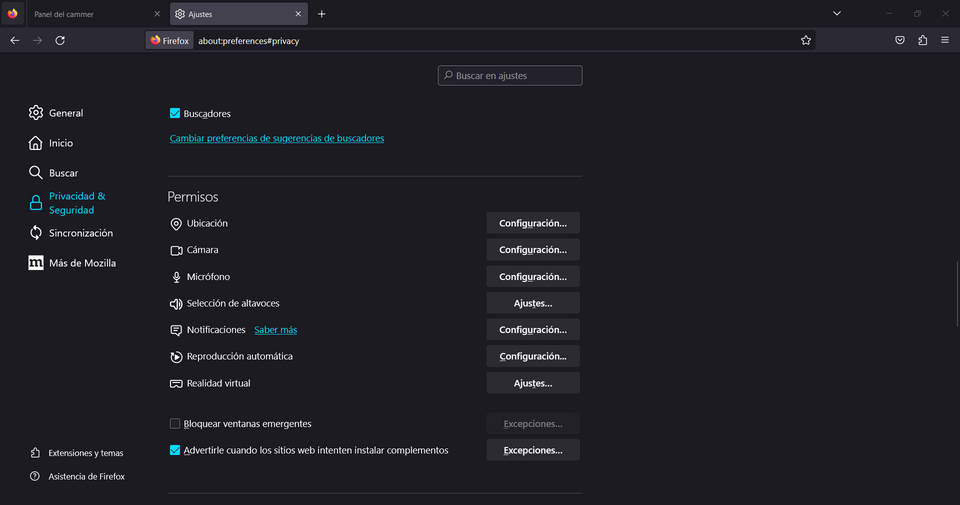
- Scroll through the visible options until you find the Permissions section.
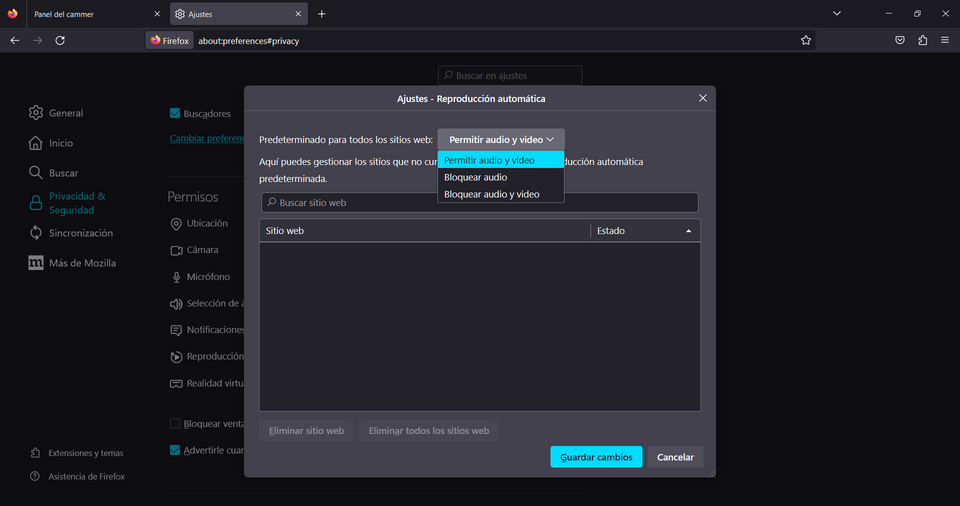
- Select Settings under Autoplay
- In the default options, select Allow Audio and Video.
- Select Save Changes.
Opera
Permissions
- Open the site information panel.
- Go to Site settings.
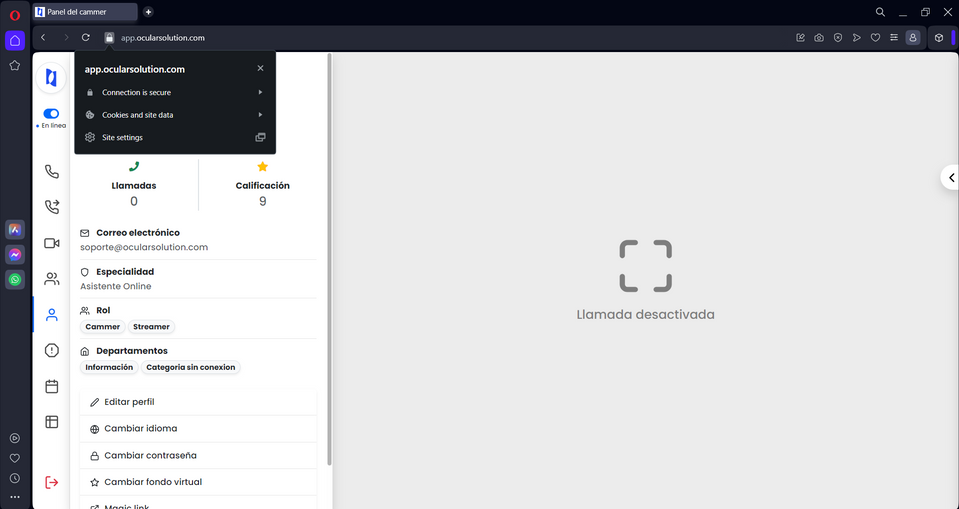
- Change the default permission for camera, microphone, notifications, and sound to Allow.
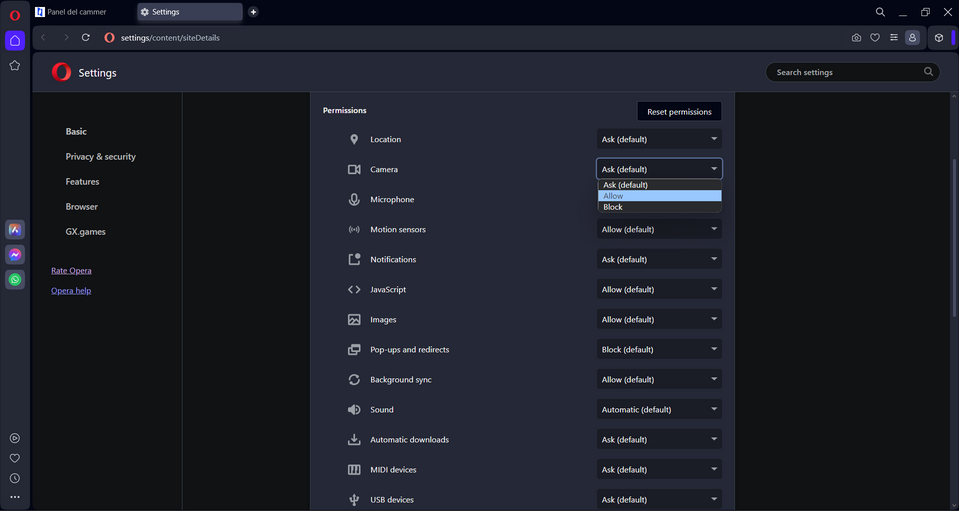
All of the settings mentioned above are highly recommended to avoid inconsistencies and service disruptions.
These are general requirements and may vary with system updates. Periodically check the latest recommendations and requirements in the official Ocular documentation.