Get to know the screen
Human has three fixed areas: the menu on the left, the content in the center and a thin bar on the right with the team chat and your appointments.
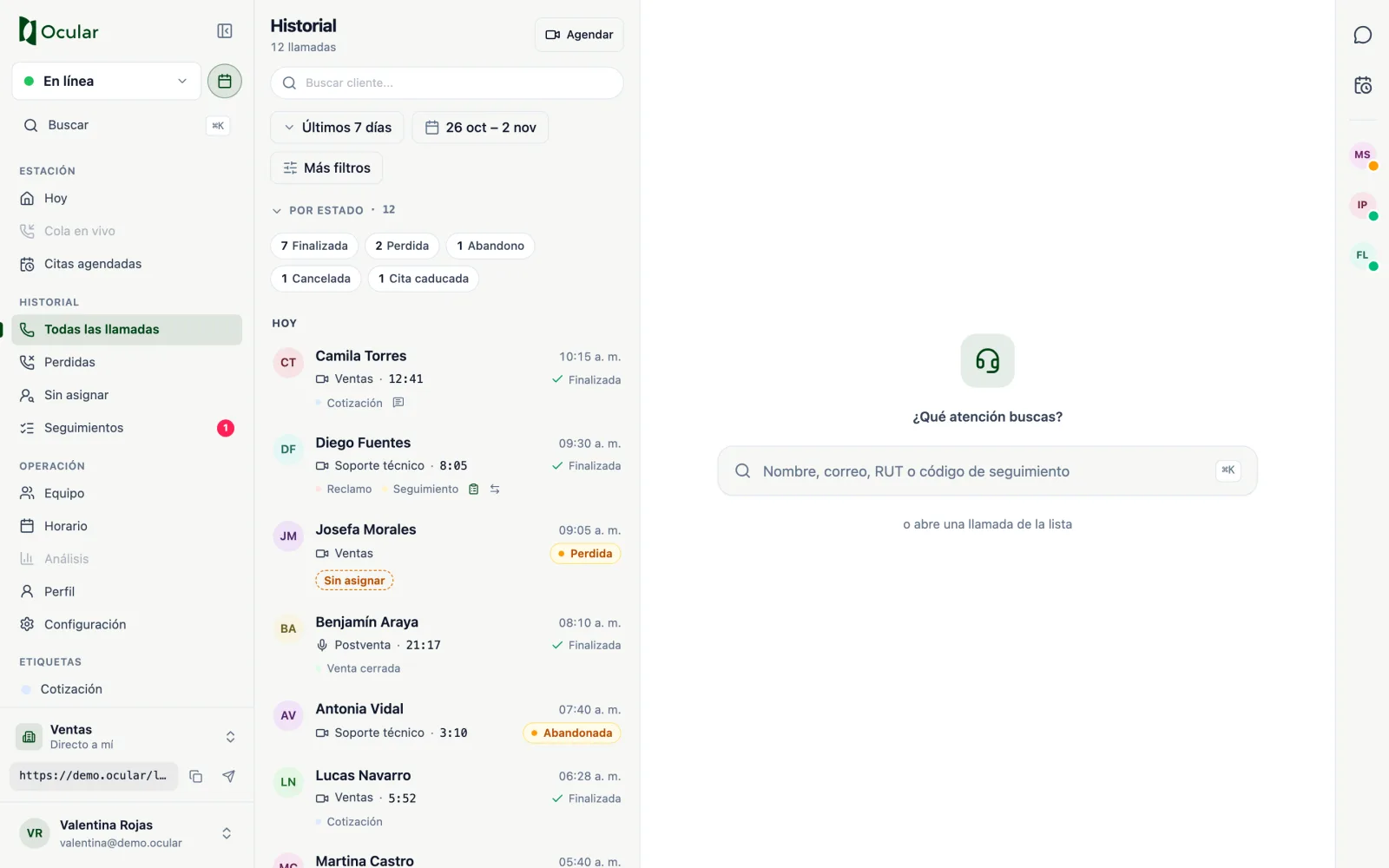
Main view: side menu, call history and detail panel.
The side menu
| Section | What you'll find |
|---|---|
| Station | Today (your daily summary) and Scheduled appointments (depending on your account). Live queue appears grayed out: it will arrive in an upcoming version. |
| History | All calls, Missed, Unassigned (depending on your account) and Follow-ups (Seguimientos). A red dot indicates follow-ups with changes you haven't seen yet. |
| Operation | Team, Schedule (depending on your account), Profile and Settings. Analytics will arrive later. |
| Tags | Your organization's tags. Click one to see only the calls that have it. |
Below the menu are your direct links and the user menu. The button to the right of the logo collapses the menu; you can also use ⌘ + </kbd> on Mac or Ctrl + </kbd> on Windows.
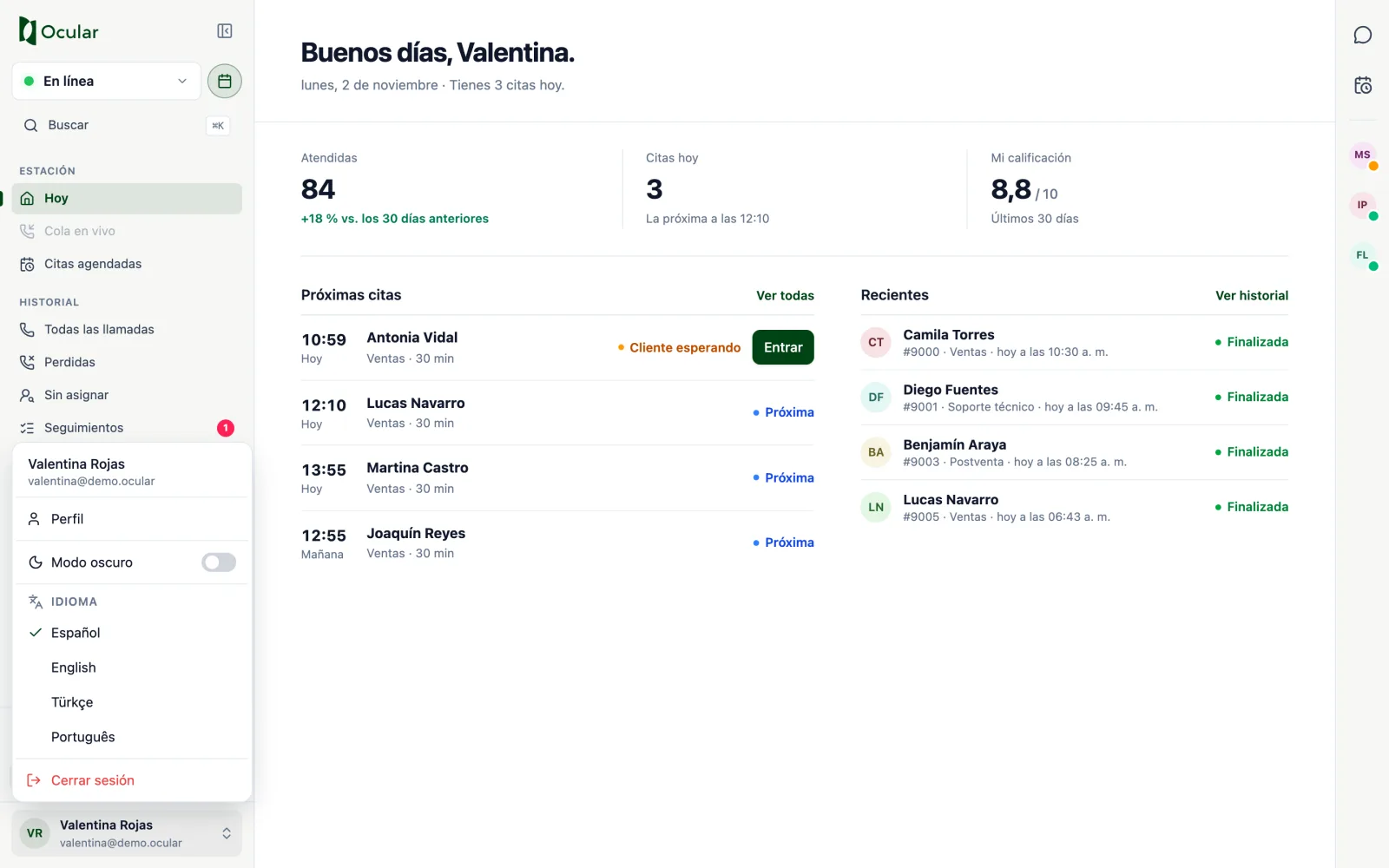
User menu
Clicking your name opens a menu with your Profile, the switch to Dark mode, the Language (Spanish, English, Turkish or Portuguese) and Sign out.
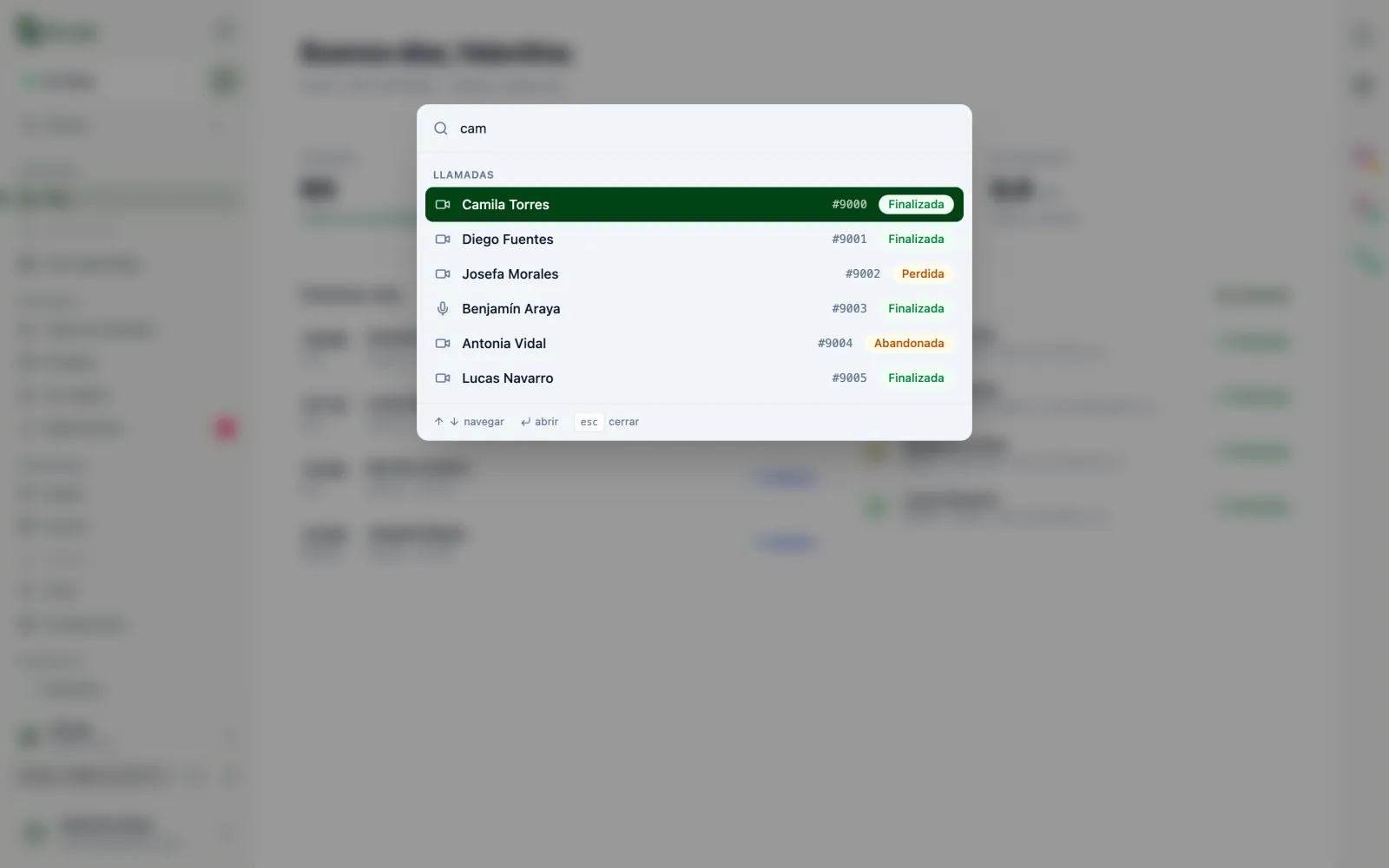
Search everything with ⌘ K
Press ⌘ + K (or Ctrl + K on Windows), or click Search. From there you can:
- Search for a customer by name, email or RUT (national ID) and open their call.
- Type a follow-up code (7 characters) to open that case.
- Run commands:
Create follow-up,Book appointment,Return to active call, go to history, to missed calls, to follow-ups, to the team, to settings or to your profile.
Use the arrow keys to move, Enter to open and Esc to close. When the search box is empty, it shows your recent calls.
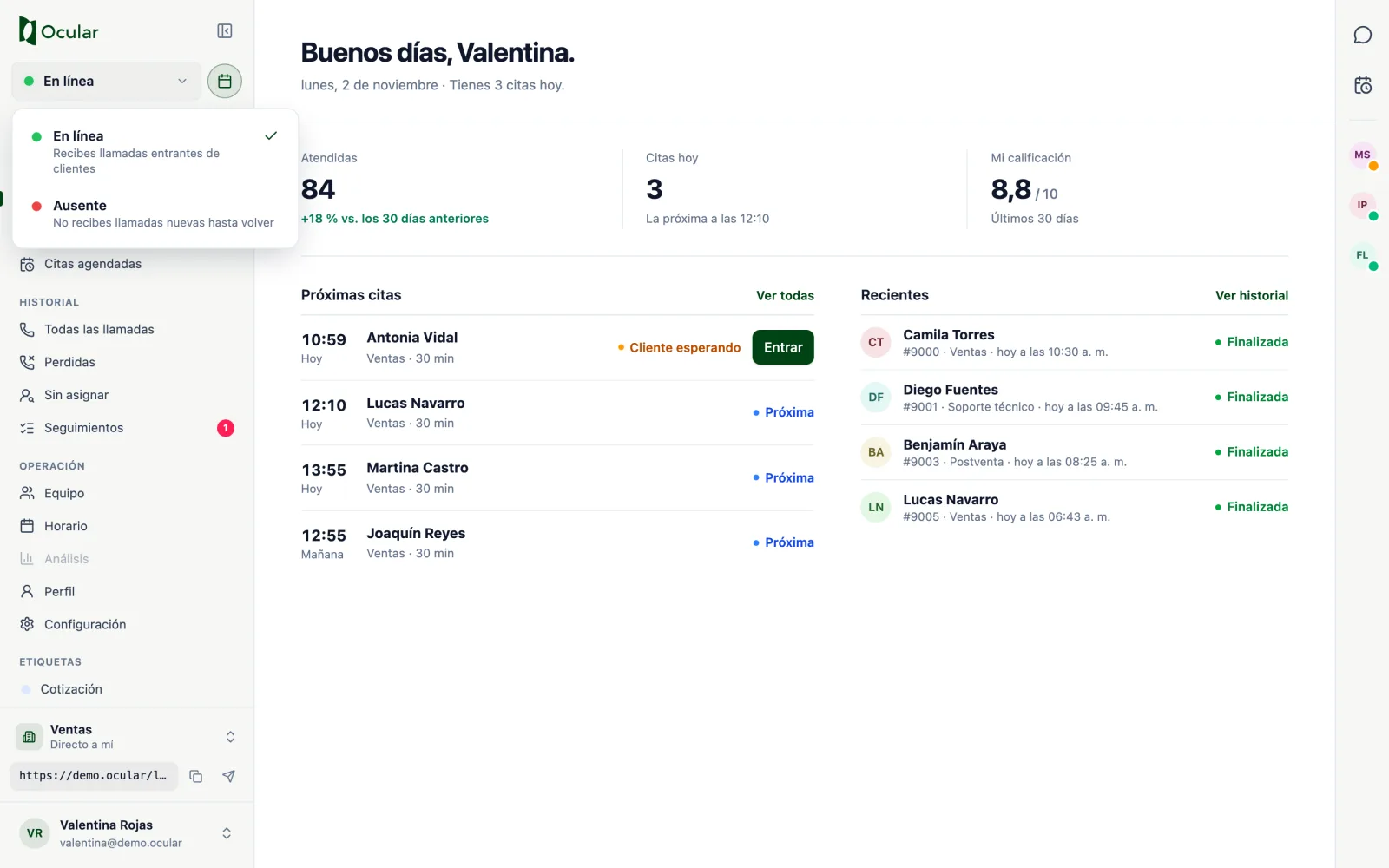
Your status: online or away
The selector at the top of the menu decides whether calls reach you.
- Online: you receive incoming calls from customers.
- Away: you don't receive new calls until you go back online. Use it for breaks or lunch.
You don't need to mark yourself as busy: while you are handling a call, Human automatically shows that you are On a call and doesn't send you another one. If the selector says Connecting…, wait a few seconds; if it doesn't change, reload the page.
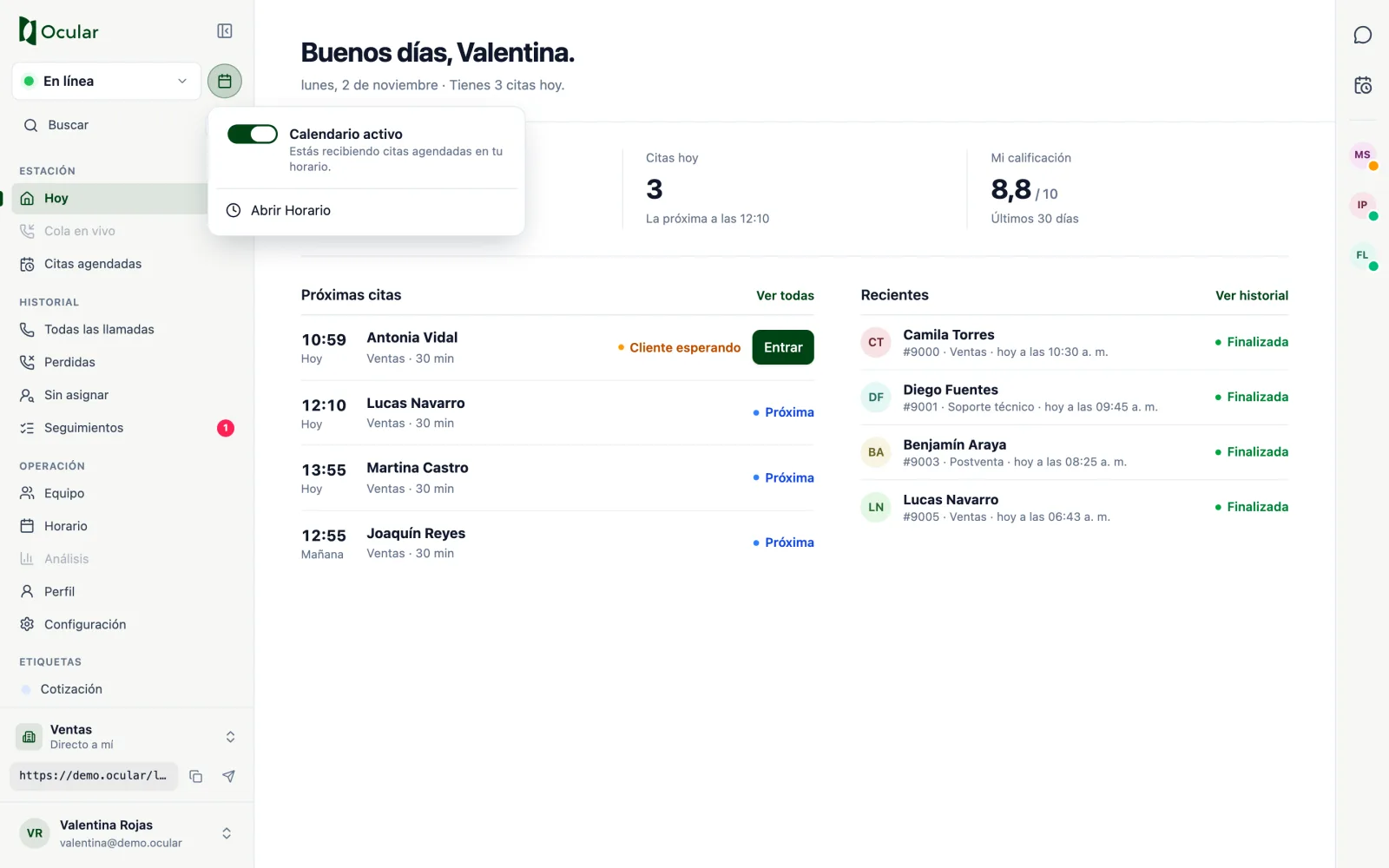
Pausing your appointments (depending on your account)
The calendar button, to the right of your status, turns your booking calendar on or pauses it. With the Calendar paused, customers cannot book new appointments with you; the ones already booked are not canceled.
Today
Your starting point every morning: how many calls you handled, your appointments for the day and your latest calls.
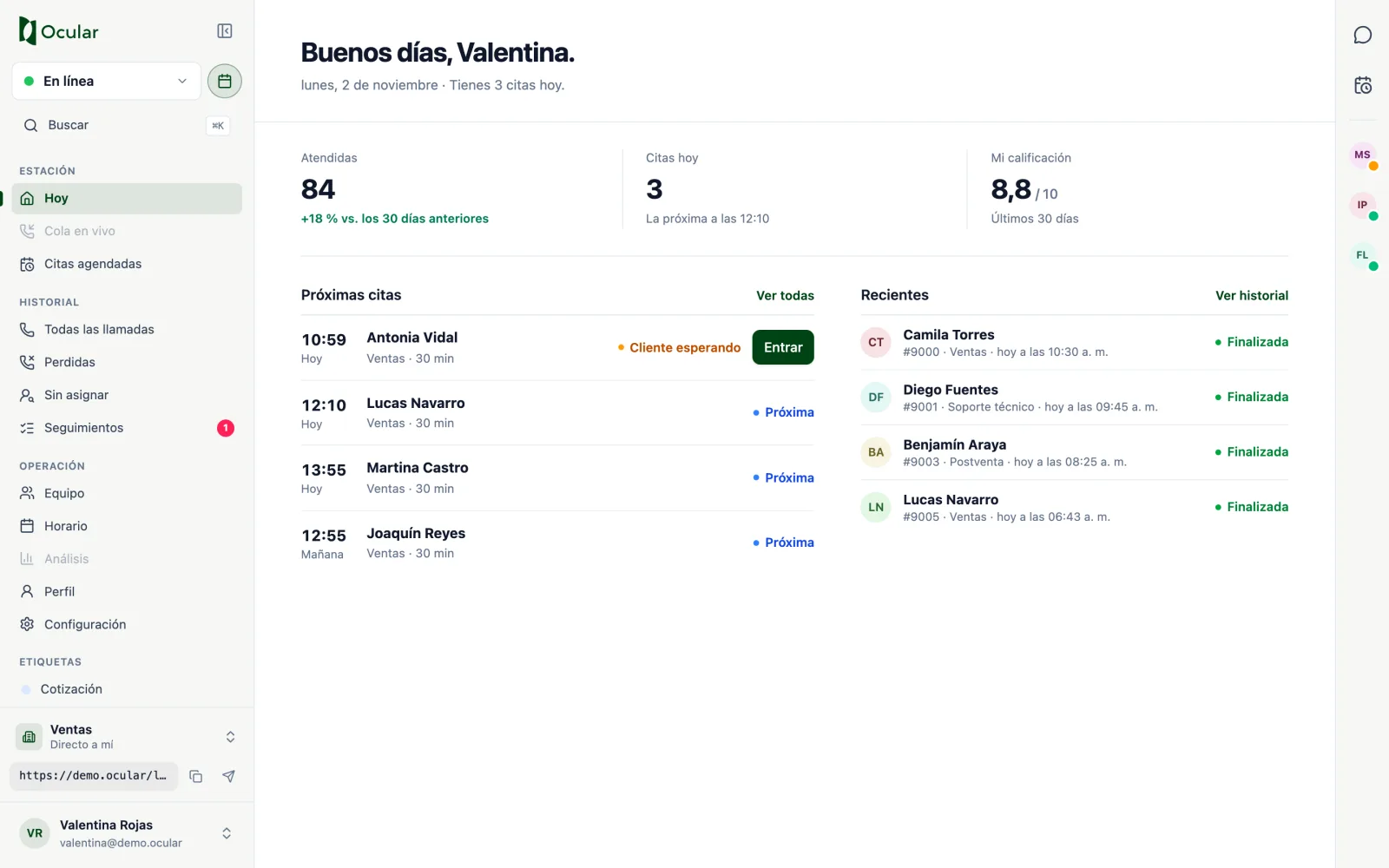
- Answered: calls you answered in the last 30 days, compared with the previous 30 days.
- Appointments today (depending on your account): how many you have left, how many customers are waiting and what time the next one is. If your account doesn't have a booking calendar, here you see your average duration instead.
- My rating: the average rating customers gave you over 30 days, on your organization's scale.
- Upcoming appointments: when a customer has already entered the waiting room,
Customer waitingand theJoinbutton appear. - Recent: your latest calls in this browser, so you can pick them up quickly.