Call history
All your calls, with their recording, the chat, the notes and what happened in each leg. The list is on the left and the detail opens on the right.
Finding a call
- Search customer: by name or any other detail from the form.
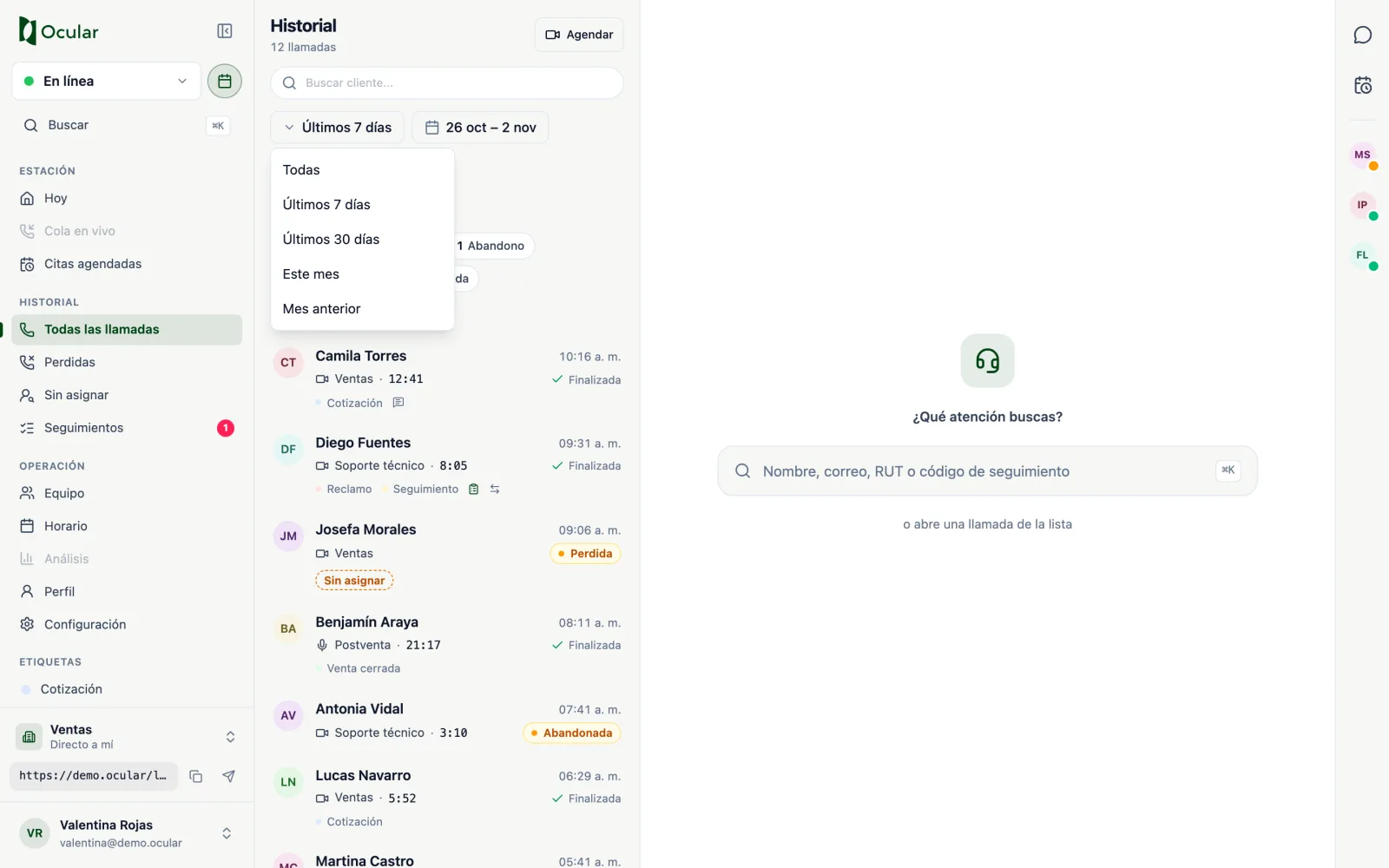
- Period:
All,Last 7 days,Last 30 days,This month,Last monthor a custom range. - More filters: by channel (video call, audio, chat, phone call, WhatsApp).
- By state: the chips show how many calls are in each state. Click one to filter and again to remove the filter.
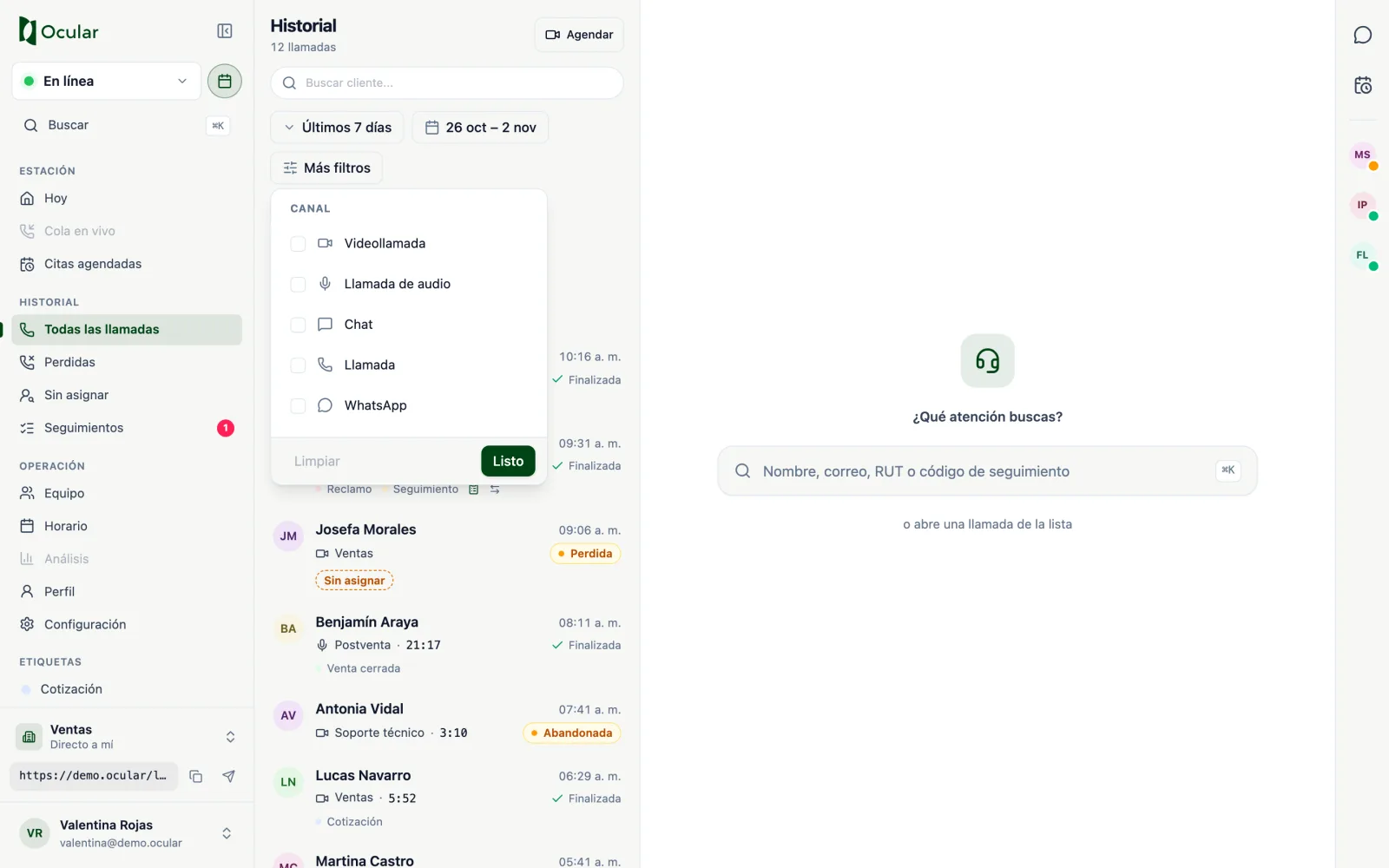
Each row shows the customer, the channel, the department, the duration, the state and its tags. The small icons indicate that the call has follow-ups, a note from you or that it was transferred between agents.
A call's detail
Click a row to open its detail.
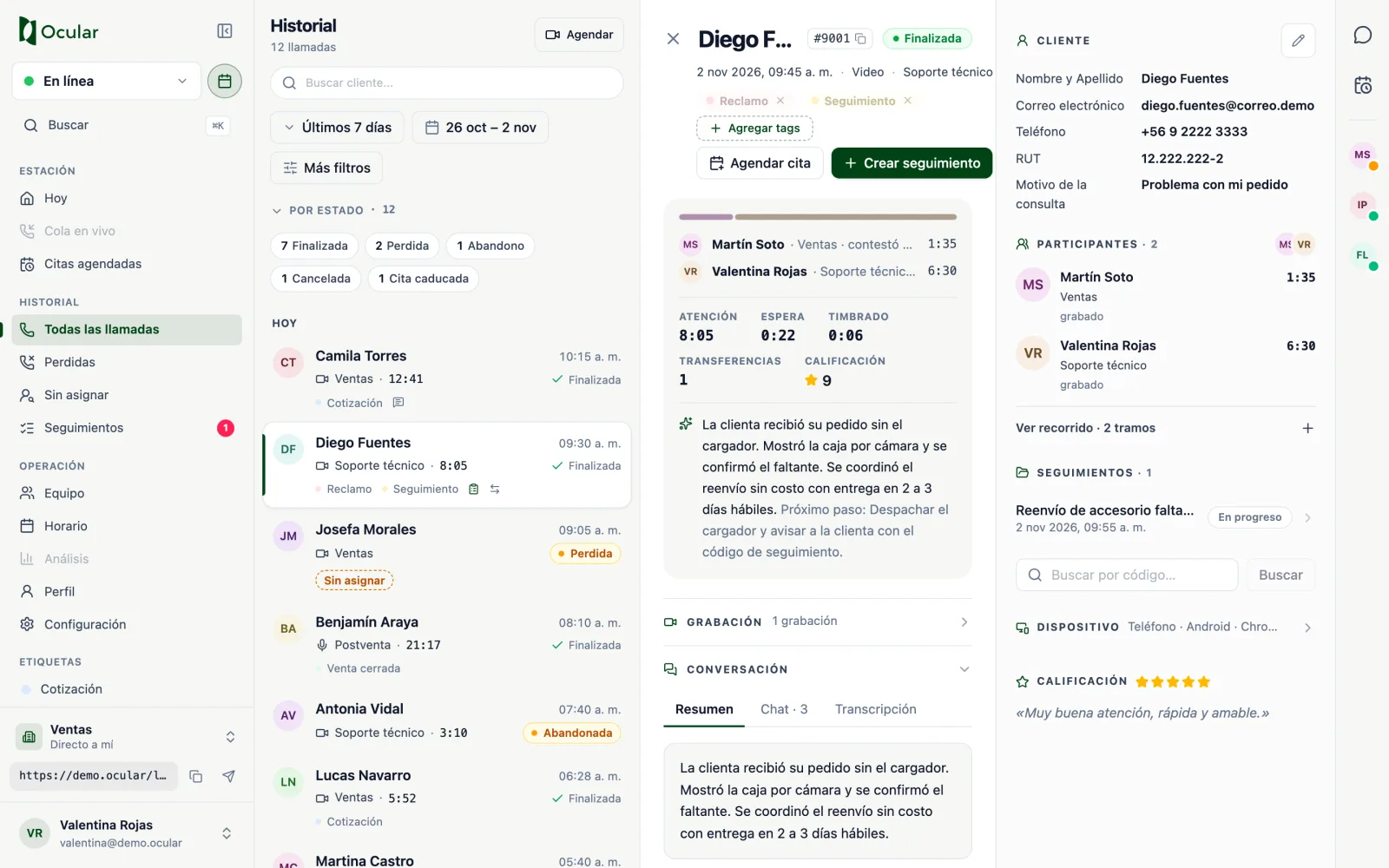
Detail of a transferred call: who answered it, how long each one talked and the rating.
- Header: customer, service number (with a button to copy it), state, date, channel and department.
- Summary: who answered, whether there were transfers, and the Handling, Wait and Ringing times, plus the rating.
- Recording: the player, with one track per take. If you don't have permission, you'll see
no access. - Conversation: the
SummaryandTranscripttabs (depending on your account) and theChatwith the shared files. - Traceability: each step of the call (queued, ringing, answered, transferred, ended) with its time and the agent.
- Journey: the pages of the site the customer visited before calling.
- My note: your internal note. Press
Save.
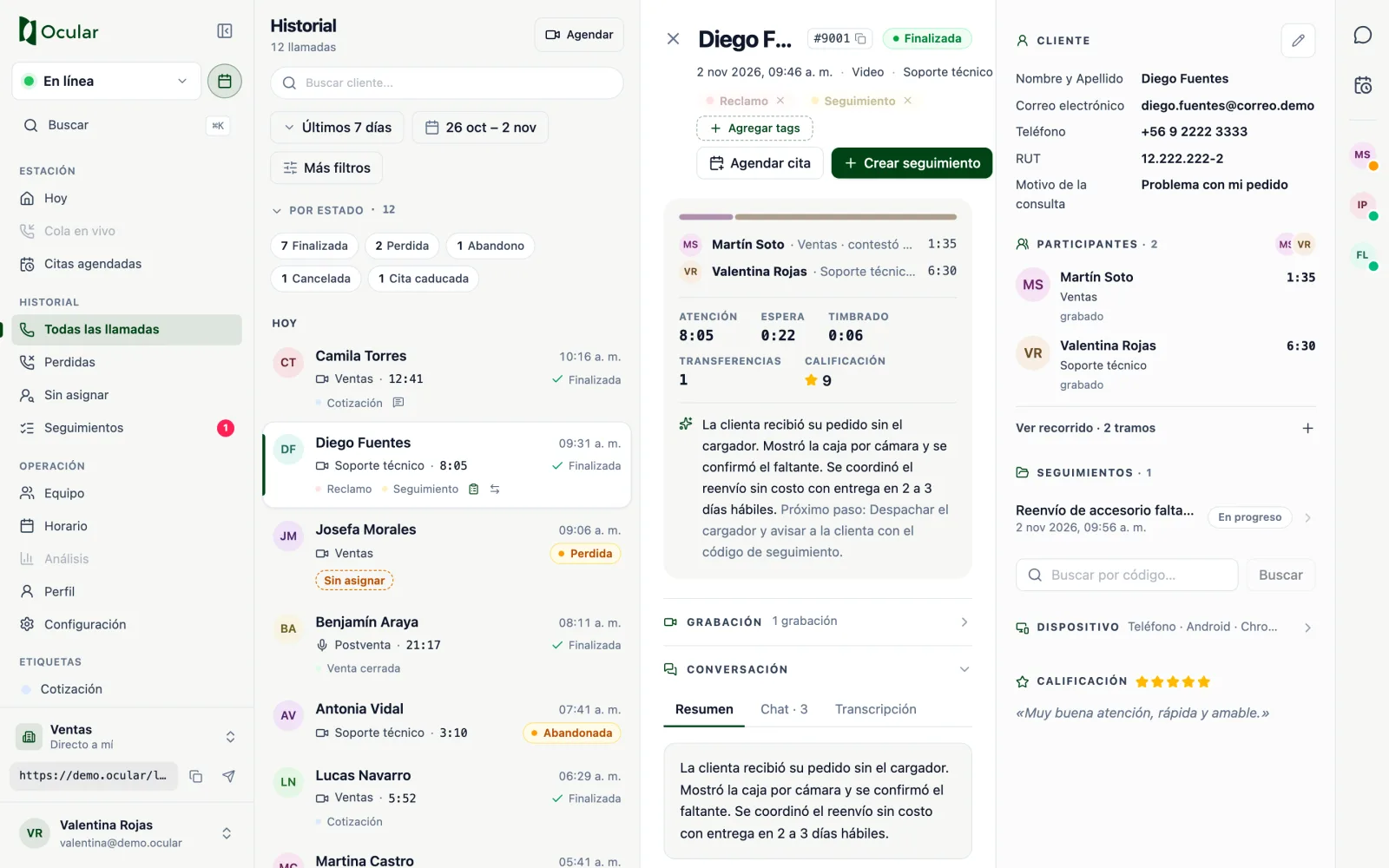
AI-generated summary, with key points and next step.
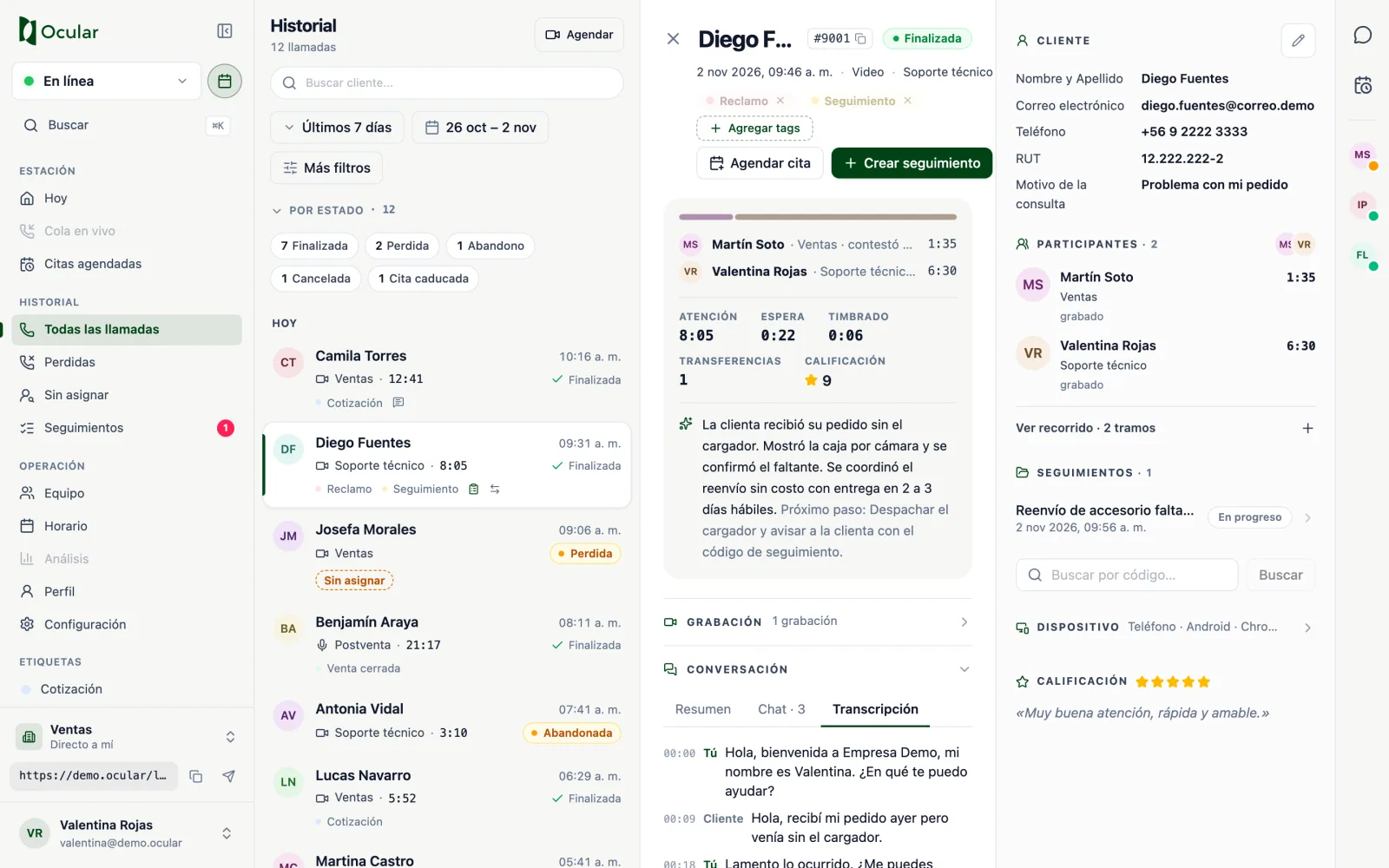
Transcript, separated between you and the customer.
Use them only to serve and follow up with the customer. Do not download them to personal devices or share them outside Human. If you believe a piece of data was exposed by mistake, notify security@ocularsolution.com immediately.
The right column
Customer: their details. With the pencil you can correct them (Edit customer details).Participants: each agent who took the call, their department and their time.View journeyshows each leg, including the rings that nobody answered.Follow-ups(Seguimientos): the cases open for this call.Device: the customer's device, operating system and browser, useful for technical support.Customer access: lets youBlock IPorUnblockthe customer and see their blocked attempts in the last 90 days.Rating: the score and the comment the customer left.
Tags
With Add tags you tag the call (for example, Quote or Complaint). You can search for an existing tag or create a new one with its color. Tags belong to the whole organization: what you create will be seen by your colleagues.
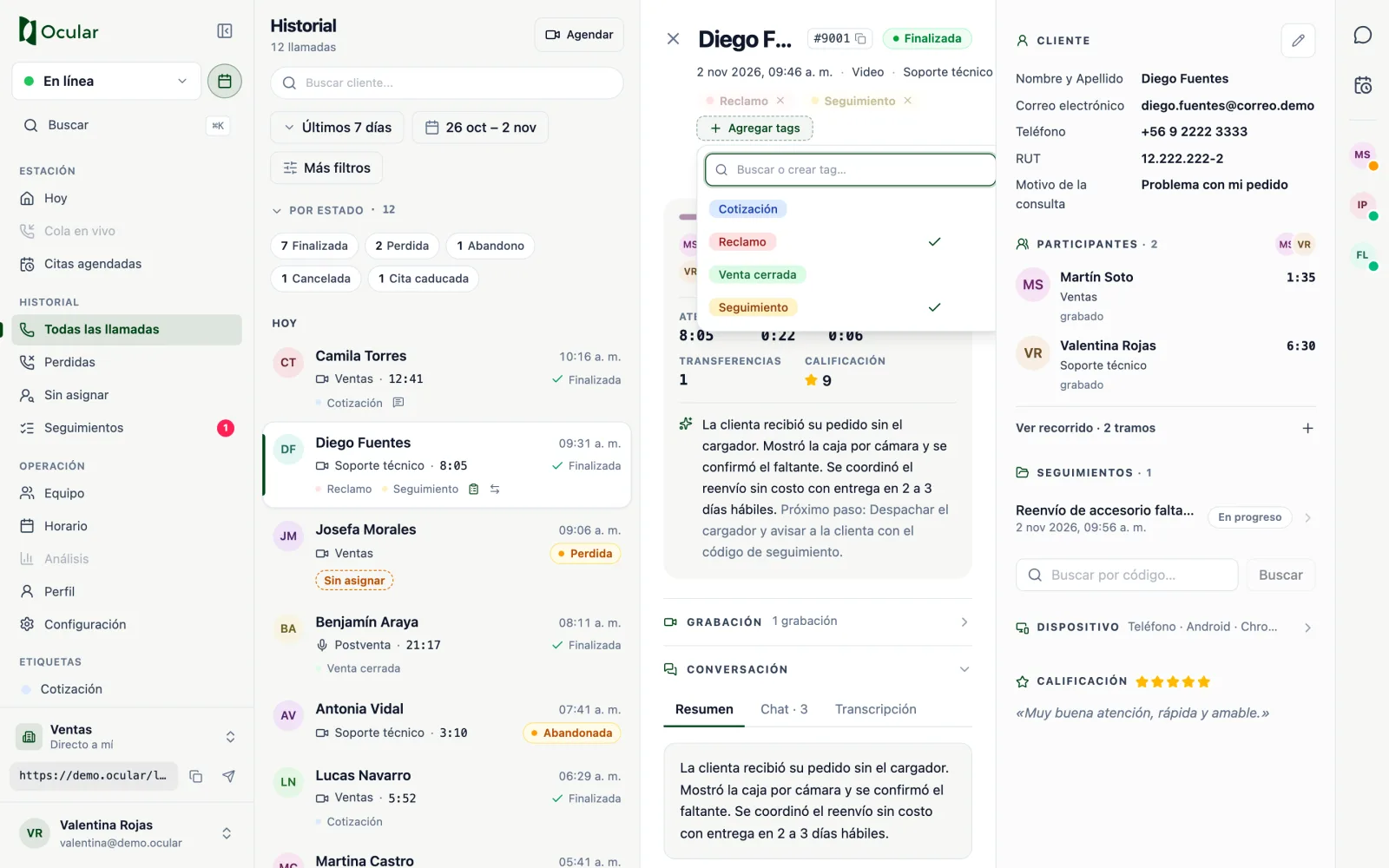
Rejoining a call
If the call is still active (for example, the customer is still in the queue), the detail shows Join call.
Missed calls
Missed gathers the calls that nobody answered. Review it at the start of your shift to call customers back.
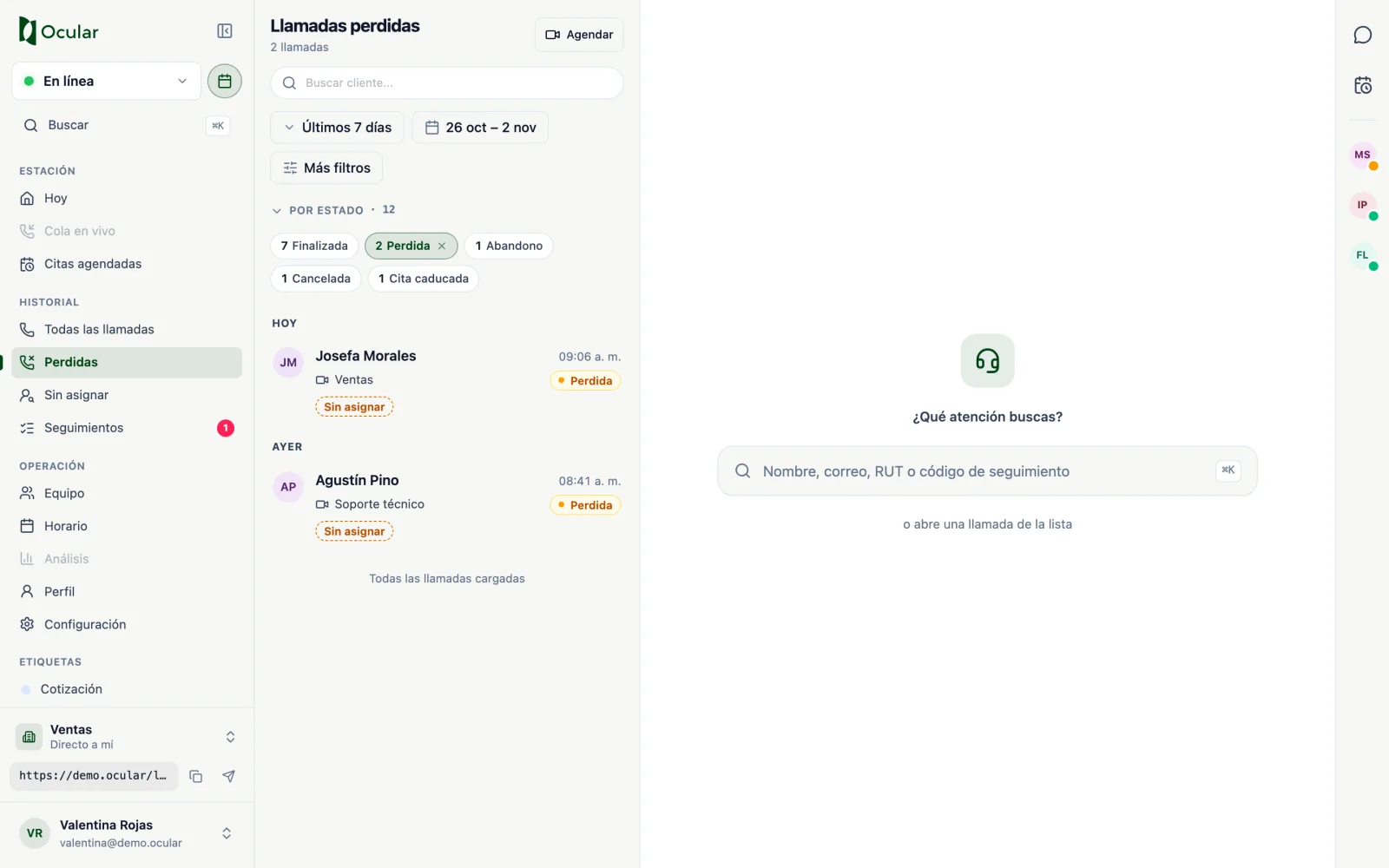
Taking an unassigned call (depending on your account)
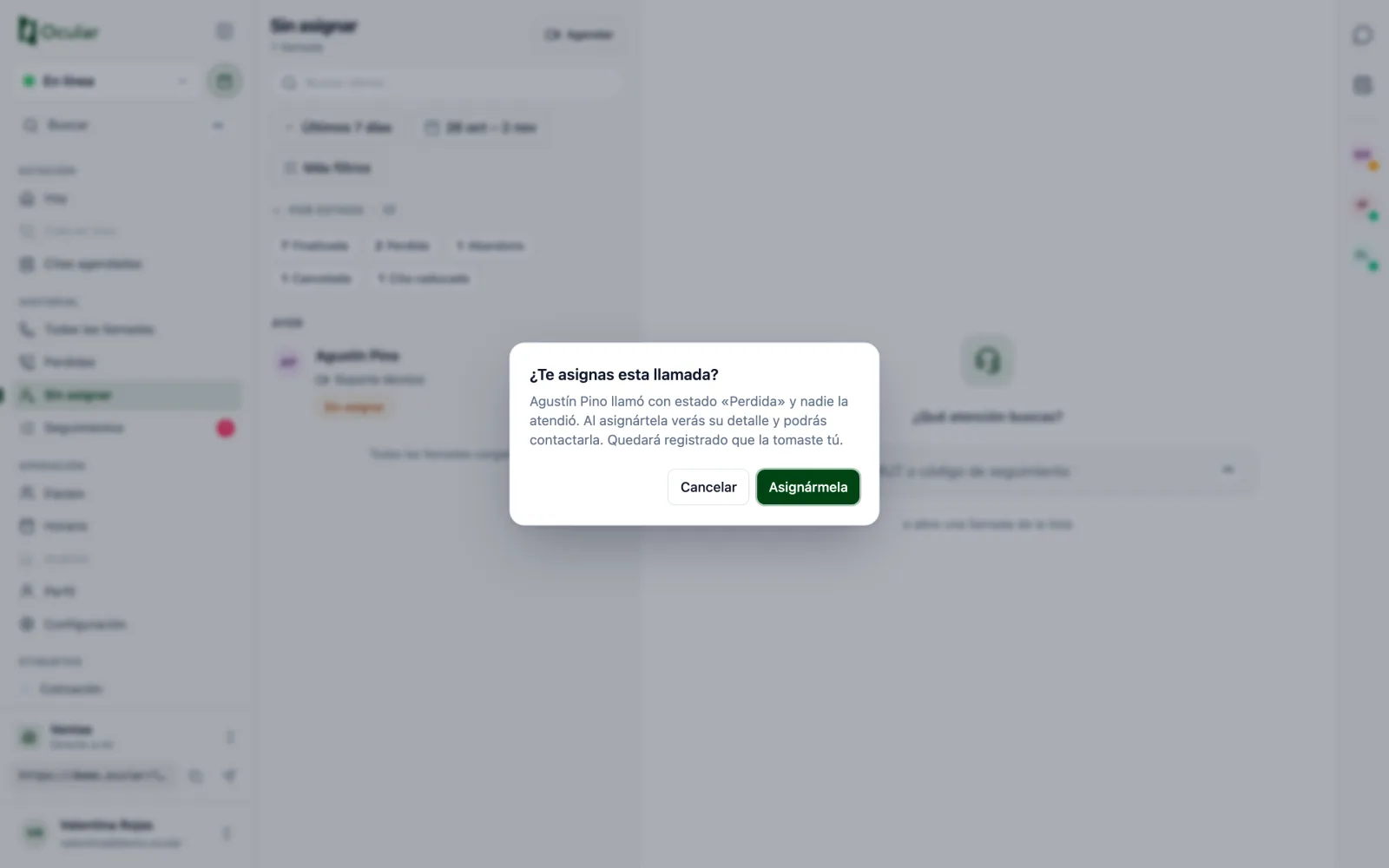
In Unassigned you see the missed calls that don't have an owner yet. To take charge of one:
- Open the call and confirm with
Assign to me. - The call is marked as
Assigned to you. If another agent took it a second earlier, you'll seeAnother agent already took it. - Use
Contact customerto send them your link by email or copy their phone number or email.