Getting started
Human runs in the browser; there is nothing to install. Before your first shift, check these four points. The full equipment and connection requirements are in General requirements.
- Browser: use the latest version of Google Chrome or Microsoft Edge. Safari and Firefox work, but some features (such as the virtual background) may not be available.
- Camera and microphone: when the browser asks, allow access. If you blocked it by mistake, go to Settings → Devices and sound.
- Sound: the ringtone for an incoming call requires the browser to be able to play audio. If the
Sound blocked(Sonido bloqueado) notice appears, follow the guide on that same screen. - Connection: a stable wired connection or nearby Wi-Fi improves video quality. Avoid taking calls with many tabs or downloads open.
Signing in
- Open the Human address your organization gave you.
- Enter your
EmailandPassword. The eye icon shows or hides the password. - Press
Sign in. - If you have two-step verification enabled, you will receive a code by email. Type it in
Verification codeand pressVerify. The code expires after 5 minutes.
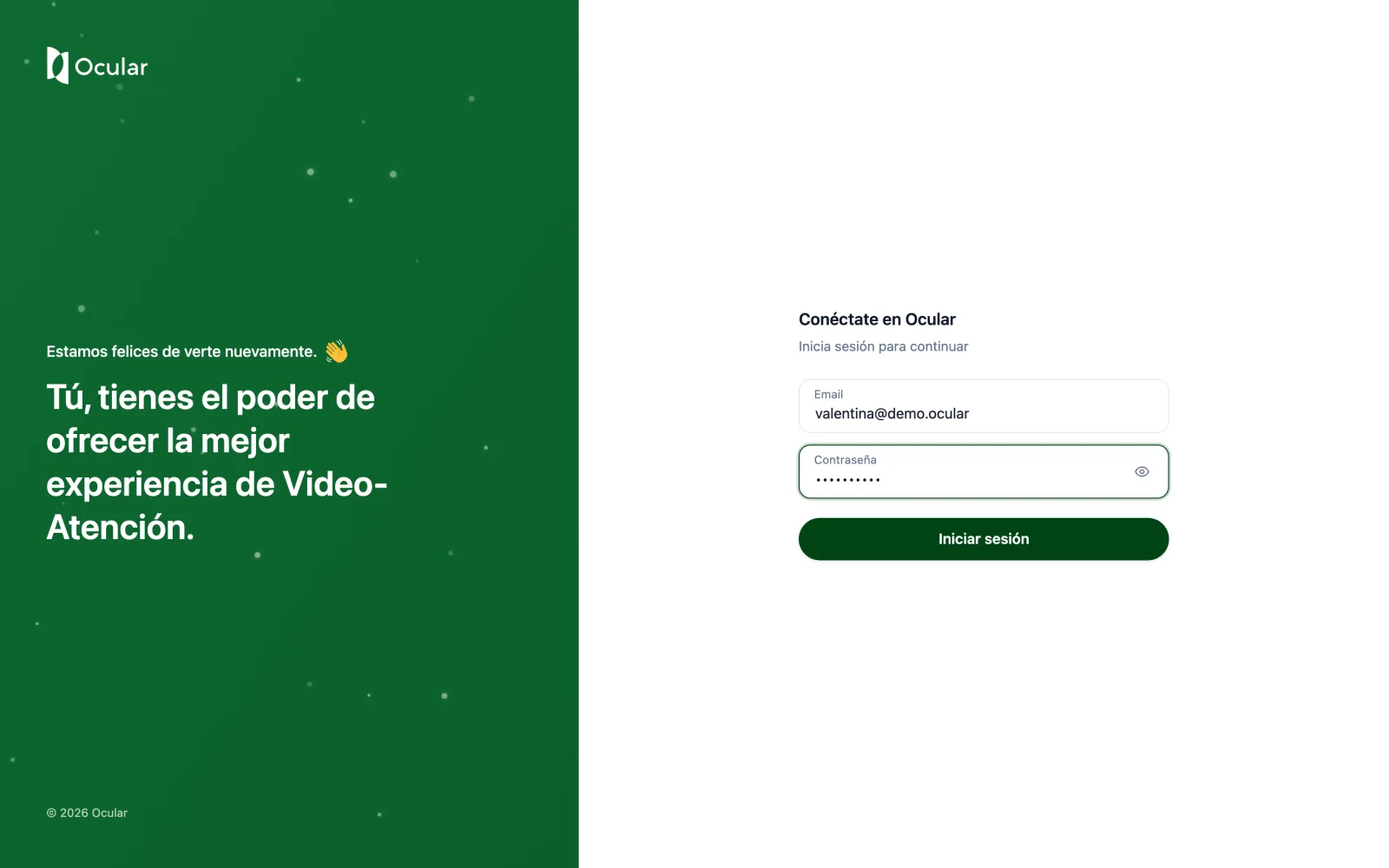
Sign-in screen.
Signing out
Open the menu with your name, at the bottom left, and choose Sign out. Keep in mind that this signs you out on every device where you are connected.
Protect your access
Do not share your password or your verification code with anyone, not even a supervisor. If you see a sign-in you don't recognize in your Profile, change your password and write to security@ocularsolution.com.