Scheduled appointments (depending on your account)
Customers can book a video call with you in the time slots you define in Schedule. At the time of the appointment, the customer enters a waiting room and you decide when to join.
When your customer arrives
- A notice appears:
<customer> is waiting for you, with the appointment time and how long they have been in the room. PressJoinorLater. - The browser tab shows
(1) Customer waitingand, if you allowed it, you receive a system notification. - If you are on another call, end it before joining.
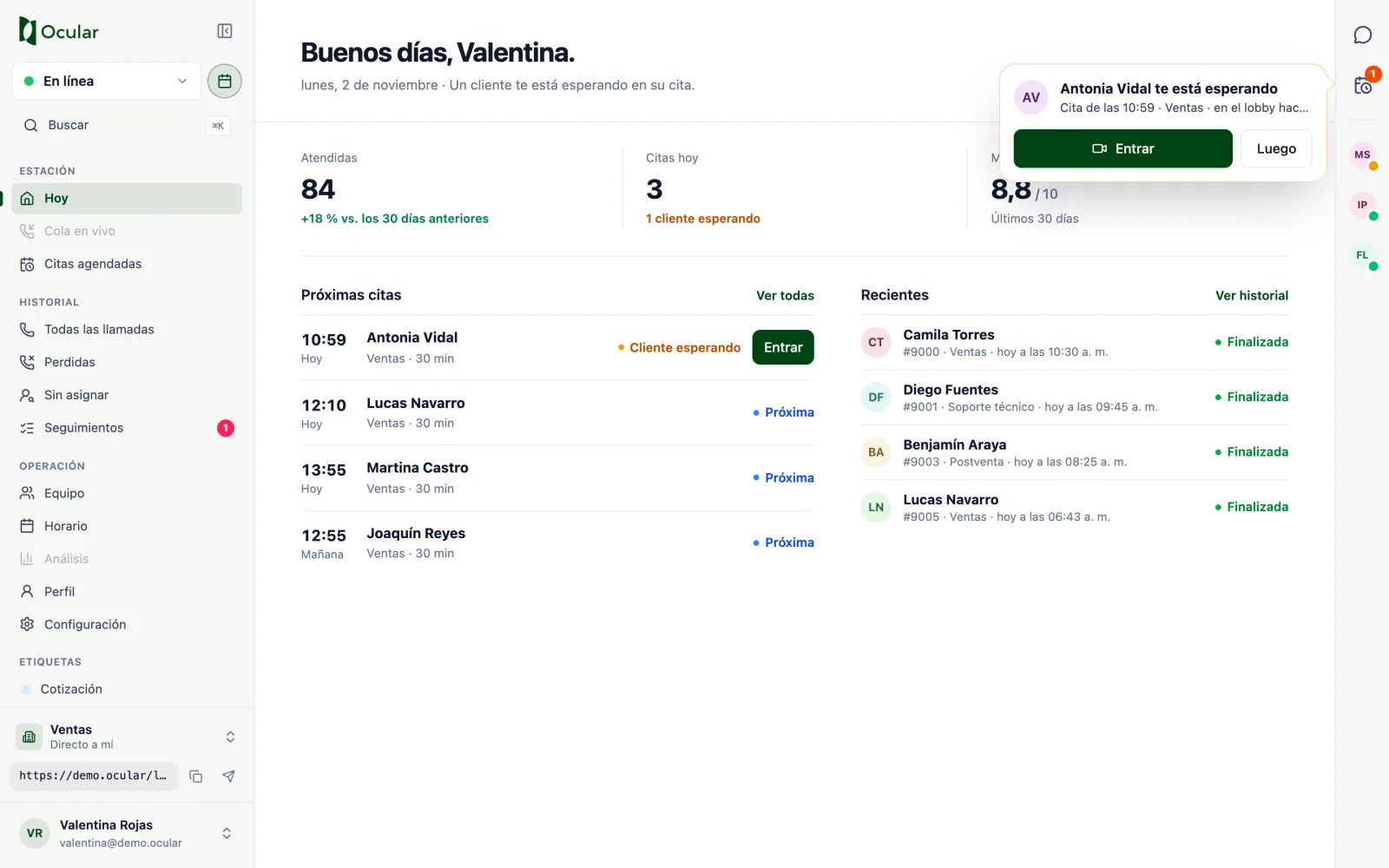
Your appointments for the day
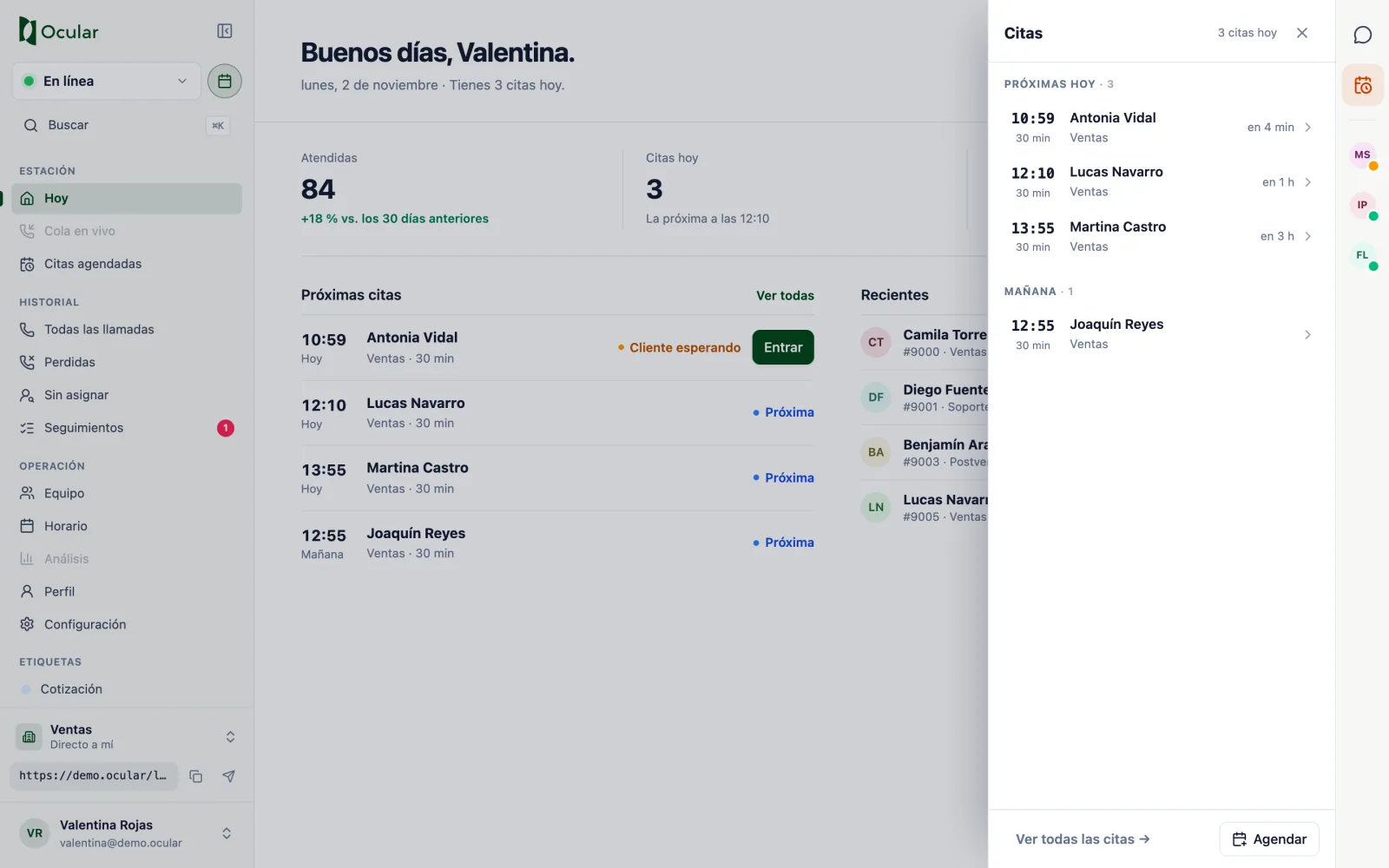
The calendar icon on the right bar opens the Appointments panel: who is waiting now, the upcoming ones for today and tomorrow's.
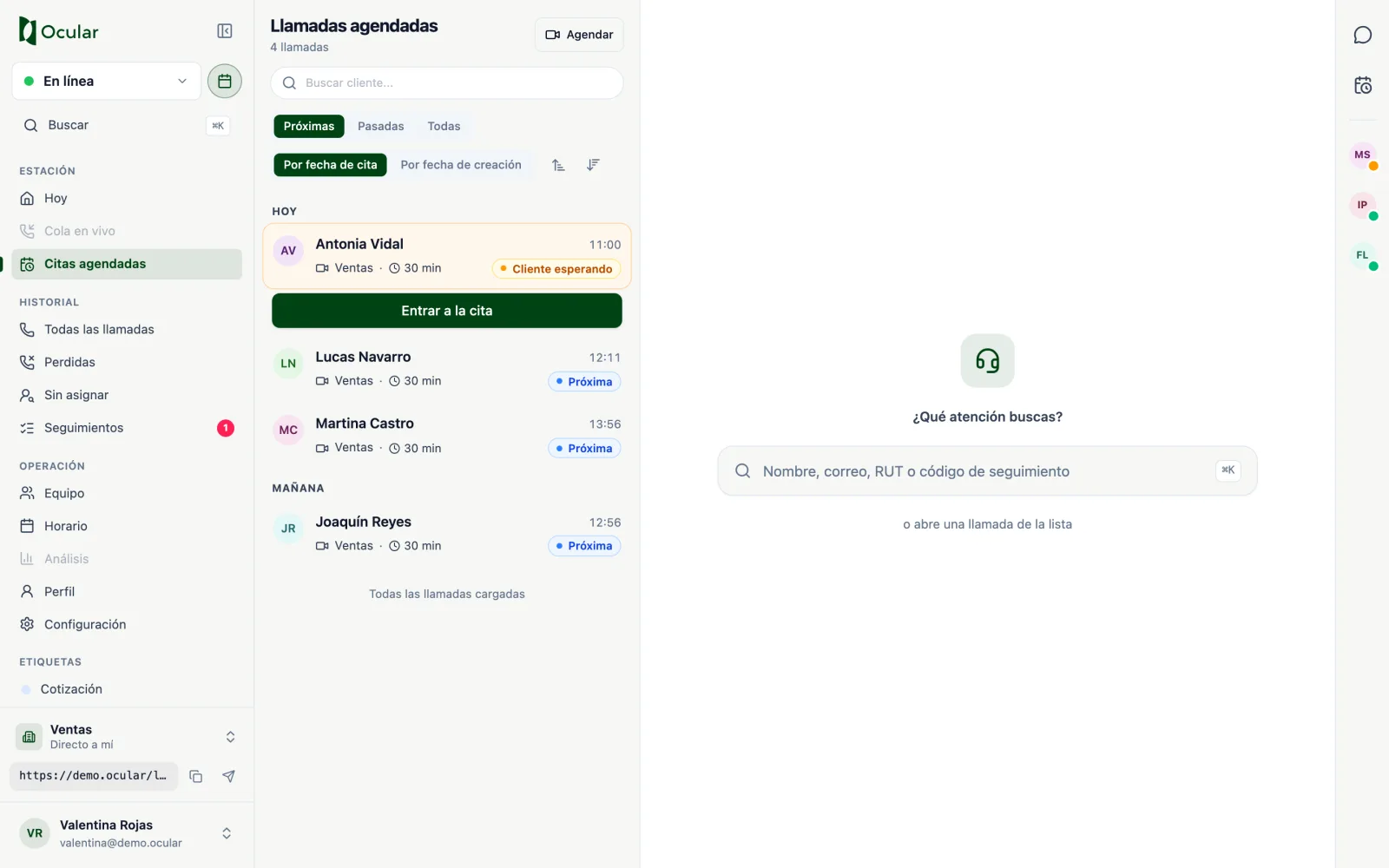
To see all of them, open Scheduled appointments in the menu, where you can filter between Upcoming, Past and All.
Appointments with an external link
If the appointment takes place outside Ocular (for example, on another meeting platform), the call detail asks you to record what happened: Mark as attended, Customer didn't show up or Block.
Booking an appointment for a customer
You can book from the Book button in the history, from a call's detail, from a call in progress or with ⌘ + K.
- Date: choose the site (widget) and the department; then an available day.
- Time: choose a free time slot.
- Details: fill in the customer form. If you come from a call, it is already filled in.
- Confirm: review the summary, choose the channel (video call, audio, chat, phone call or WhatsApp) and press
Confirm booking.
If someone took that time slot while you were booking, you'll see The selected time is no longer available: choose another one.
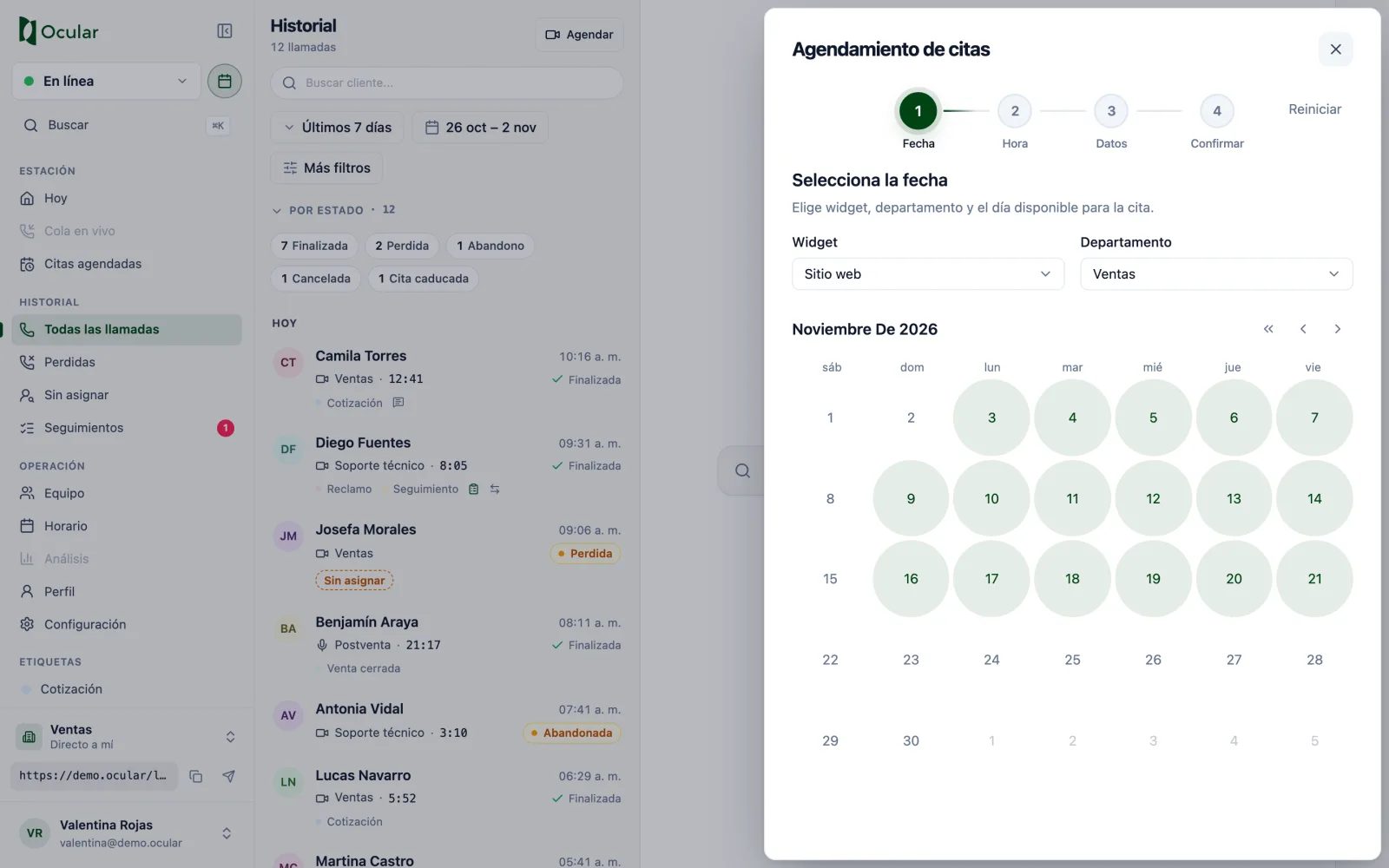
Step 1: date.
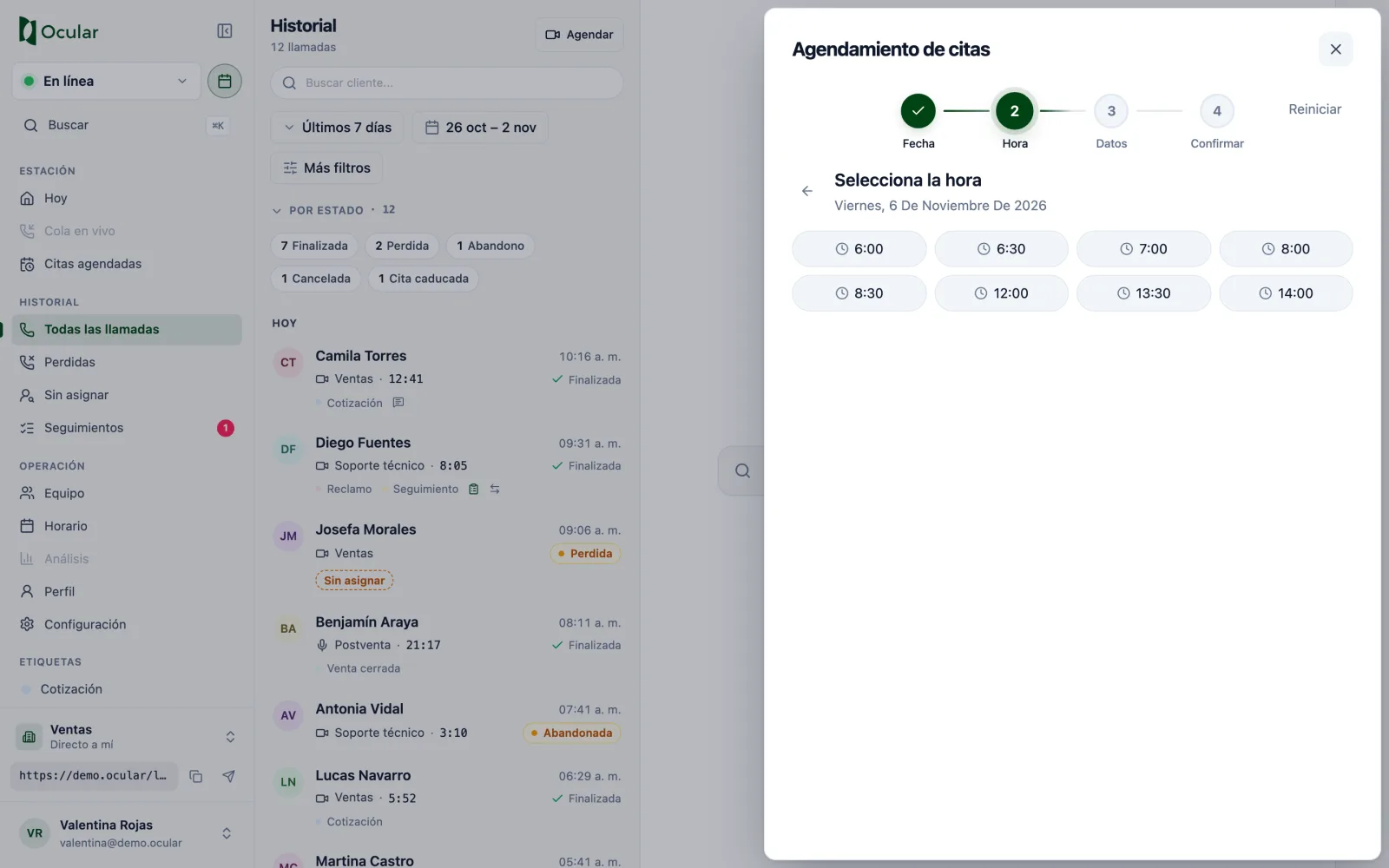
Step 2: time.