Handling a call
When you are online and a customer calls one of your departments, a ringtone plays and the incoming call notice appears in whatever view you are in.
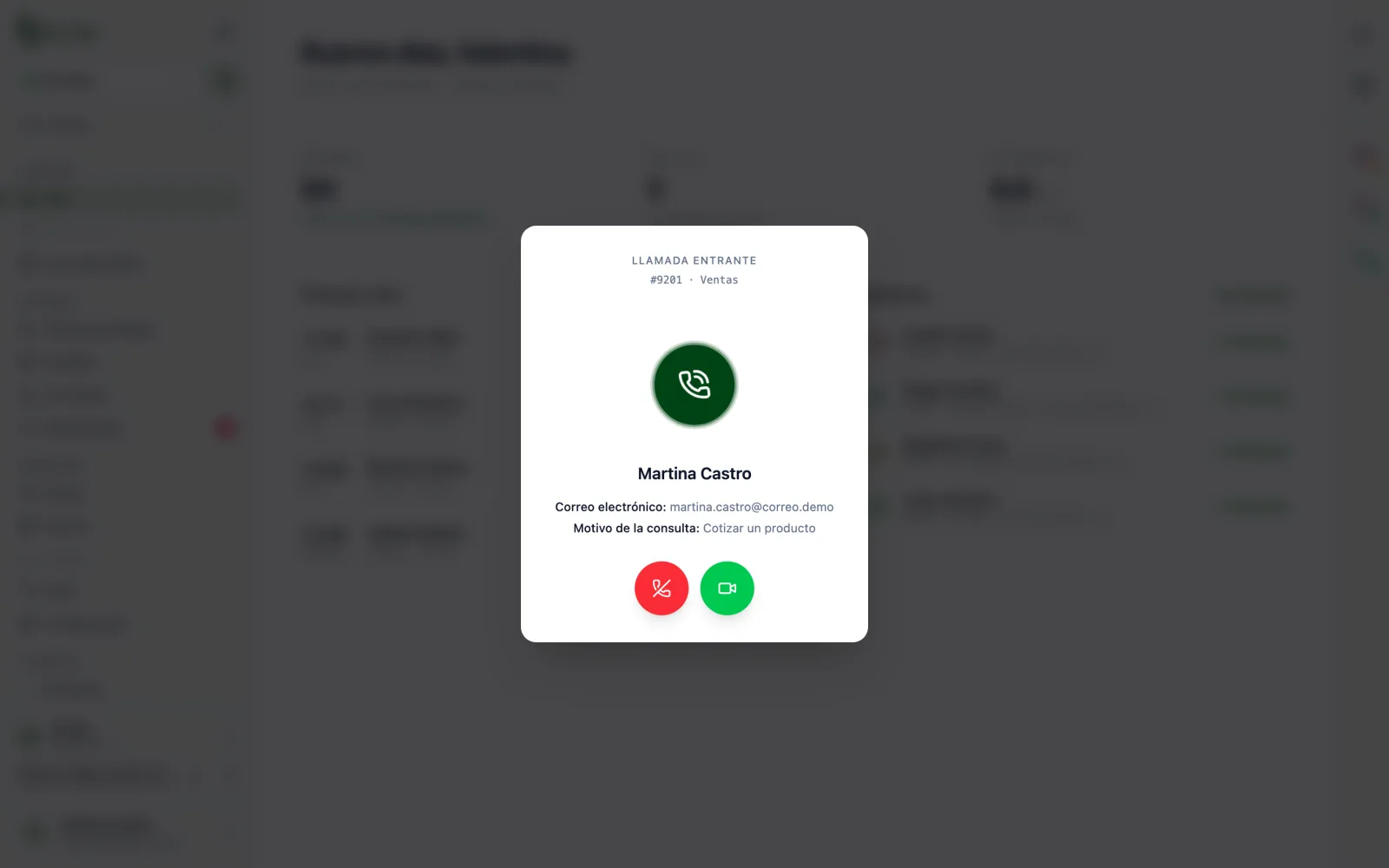
Incoming call: department, service number and the details the customer filled in before calling.
- Check the department and the customer's details. If it says
Transferred, a colleague is passing the call to you. - Press the green button (
Answer). The call screen opens and the video connects. If you can't take it, press the red one (Decline) and the call keeps looking for another agent. - Greet the customer. The clock at the top shows how long the call has lasted.
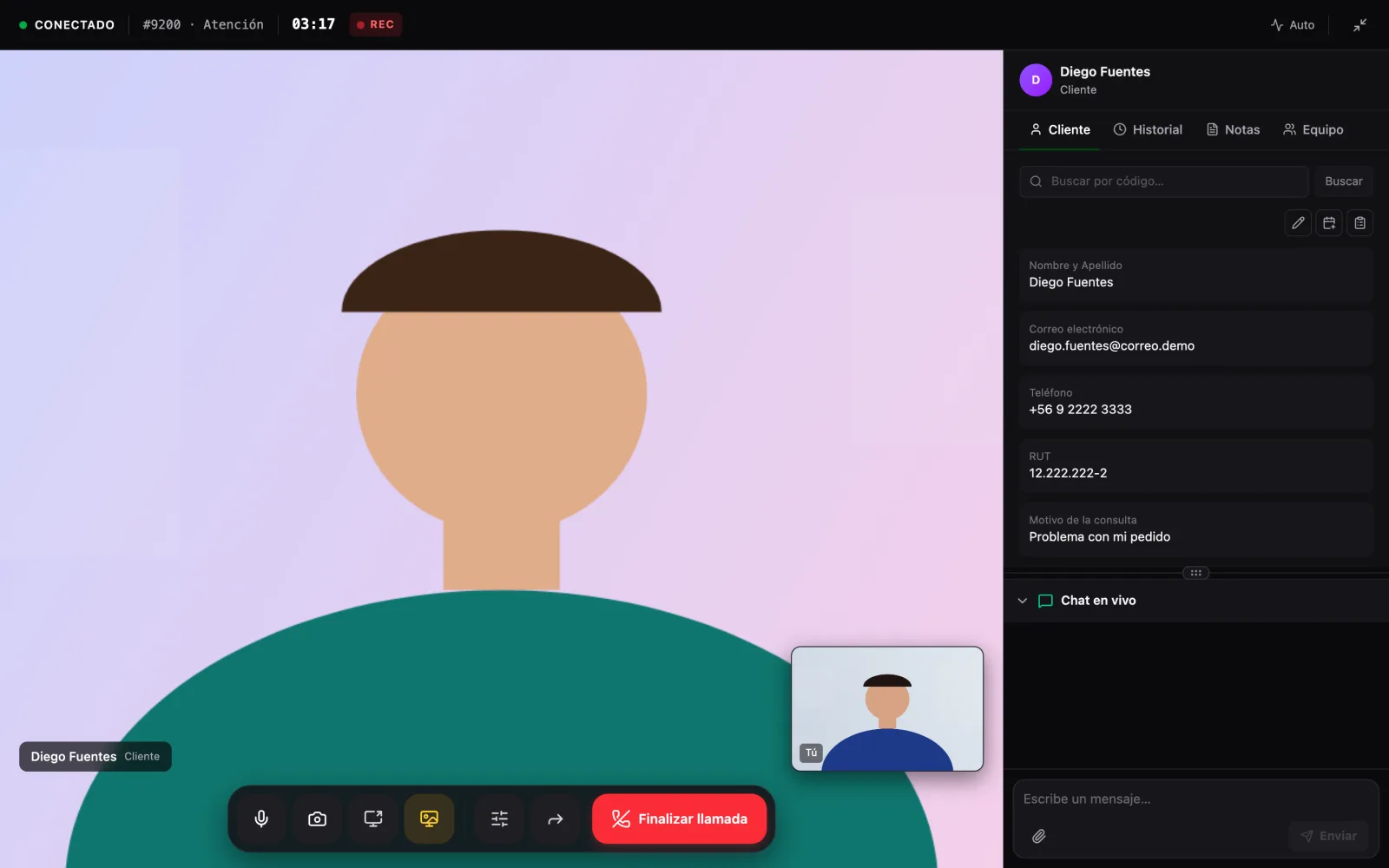
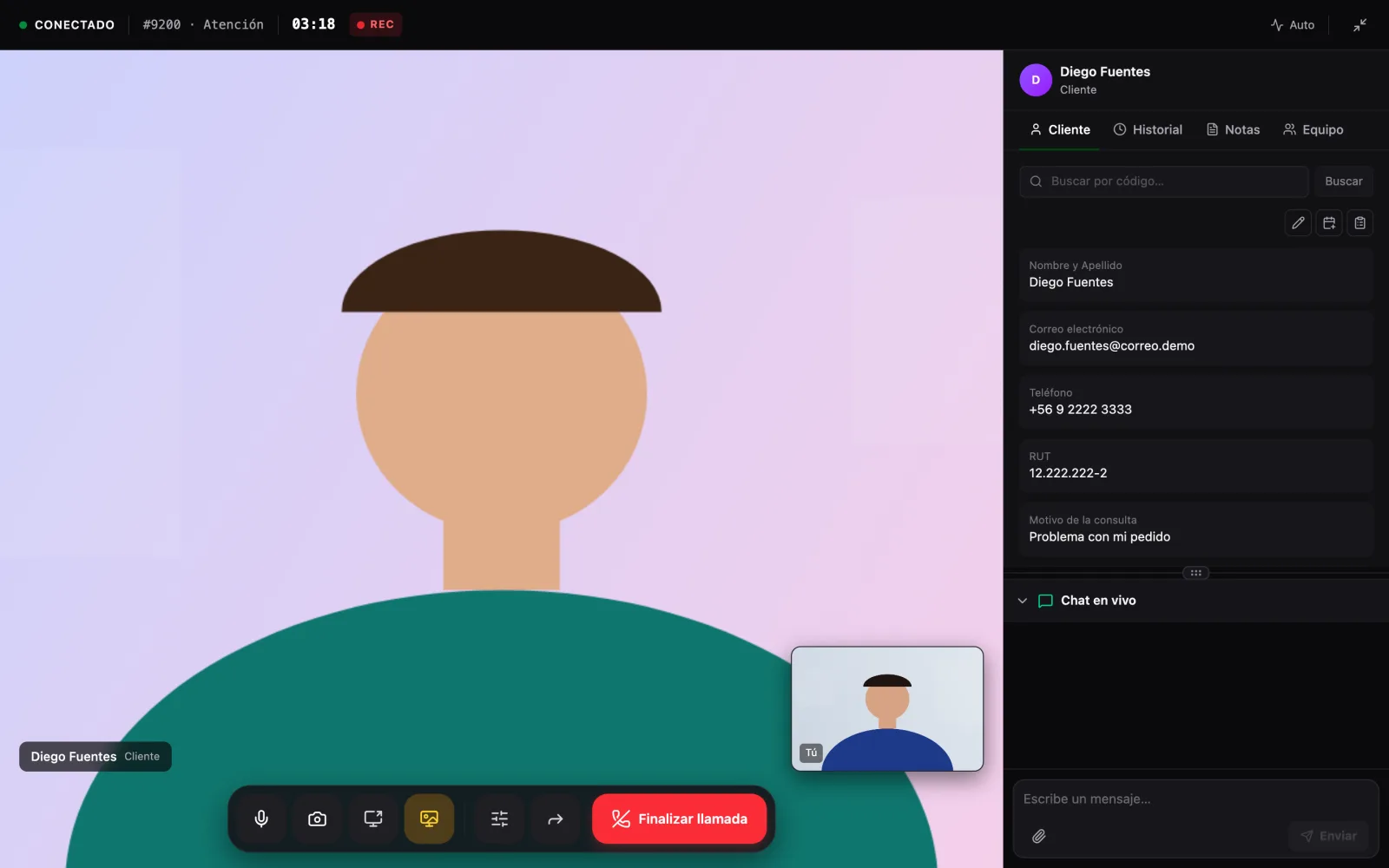
Call in progress. The customer in the center, your camera in the corner and the customer panel on the right.
The top bar
- Service number and clock.
- REC: the call is being recorded, according to your organization's settings.
- Connected / Disconnected: indicates whether the customer is still on the call.
- Quality: latency and video quality.
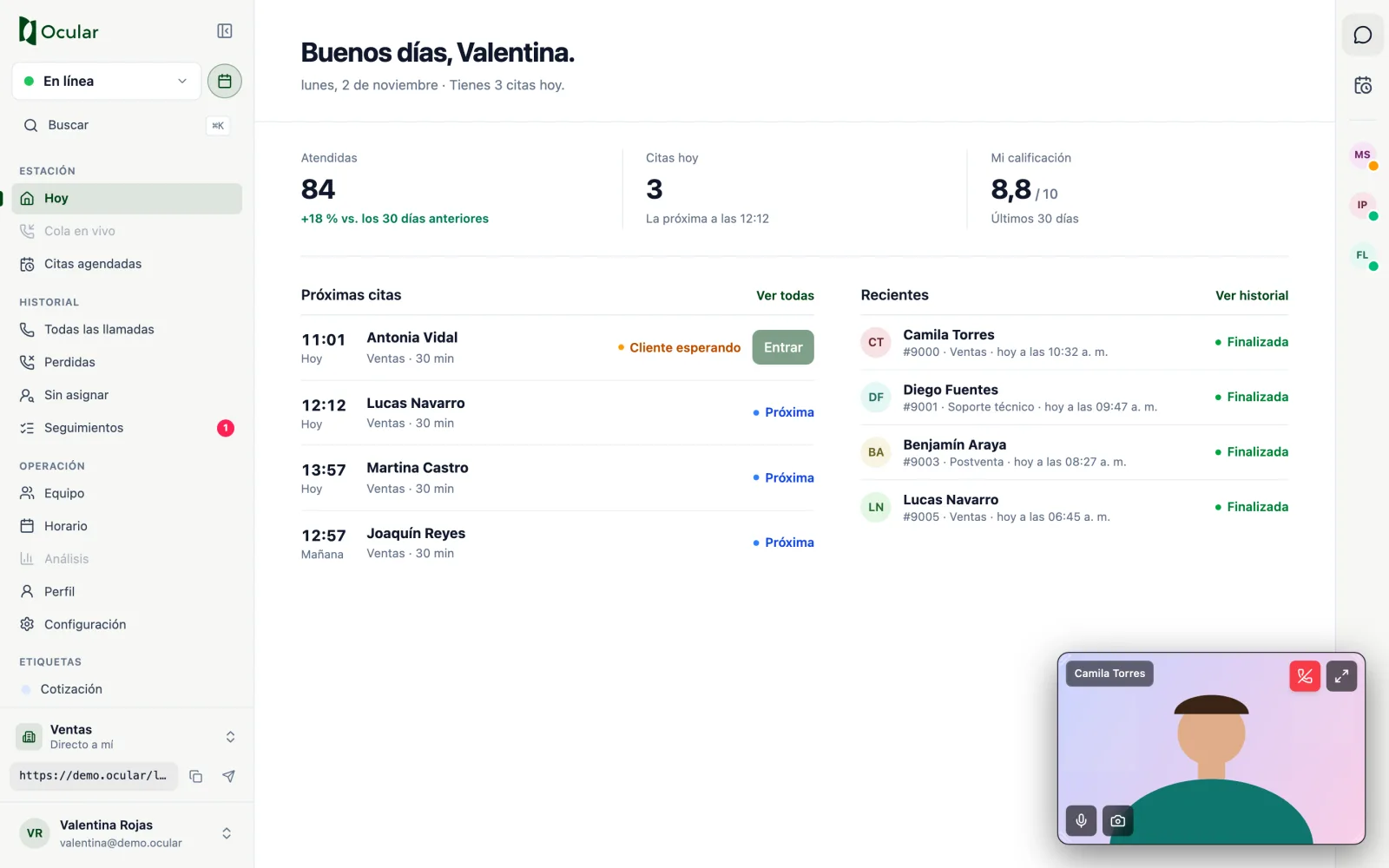
- Minimize: shrinks the call into a floating window (see below).
The controls
| Button | What it does |
|---|---|
| Microphone | Mutes or unmutes your microphone. |
| Camera | Turns your camera off or on. With the camera off, the customer sees your initials. |
| Share screen | Shows the customer a tab, a window or your screen (depending on your account). |
| Virtual background | Blurs or replaces your background (depending on your account). |
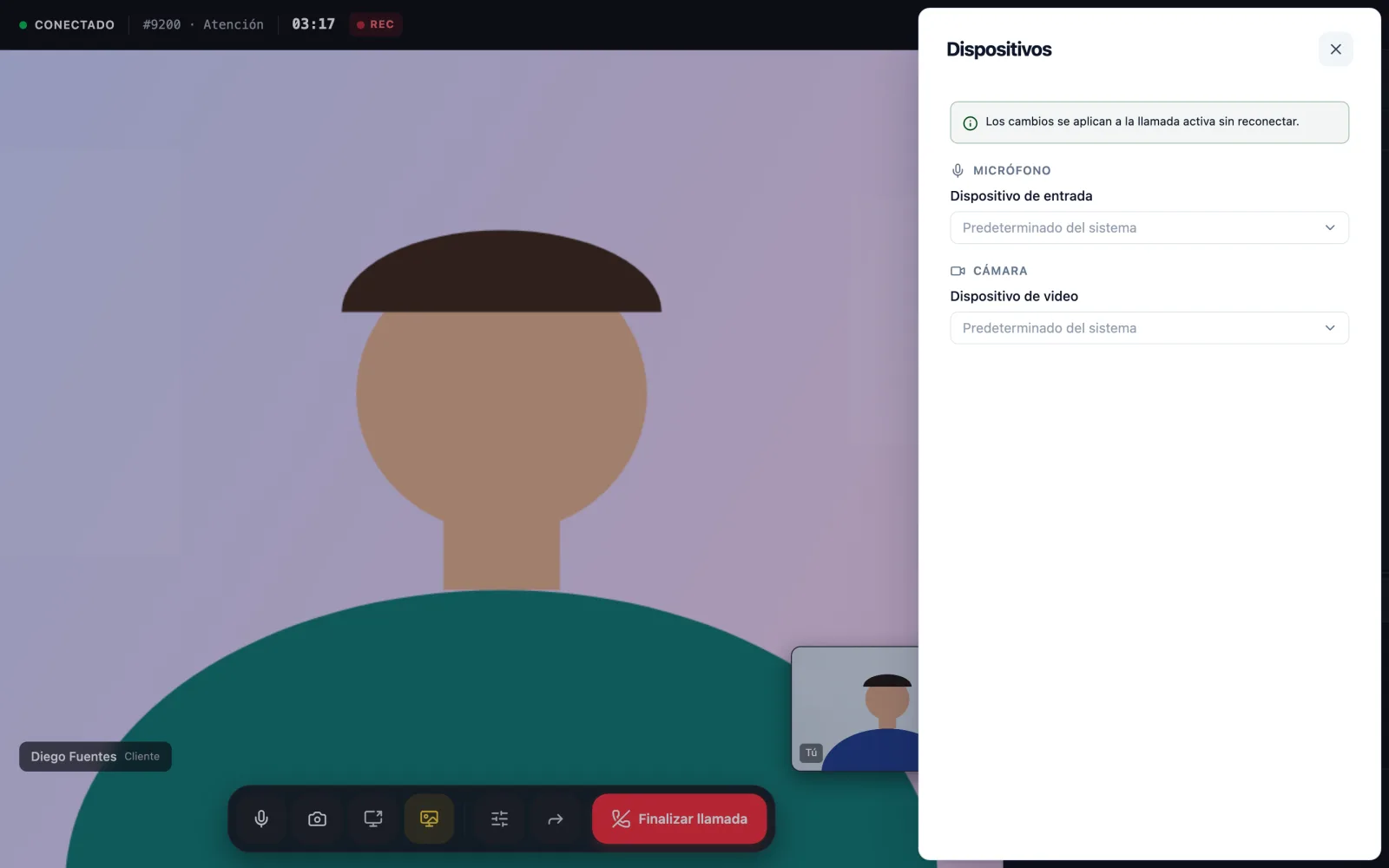
| Change devices | Choose another microphone or camera without dropping the call. |
| Transfer | Passes the call to another department or agent. |
| End call | Ends the call. |
Chat with the customer and files
In Live chat you can write to the customer during the video call. Enter sends and Shift + Enter inserts a line break. With the paper clip you can attach images (JPG, PNG), PDF, Word, MP3 or MP4 files of up to 7 MB. If the customer writes to you while the chat is hidden, a notice appears with Reply.
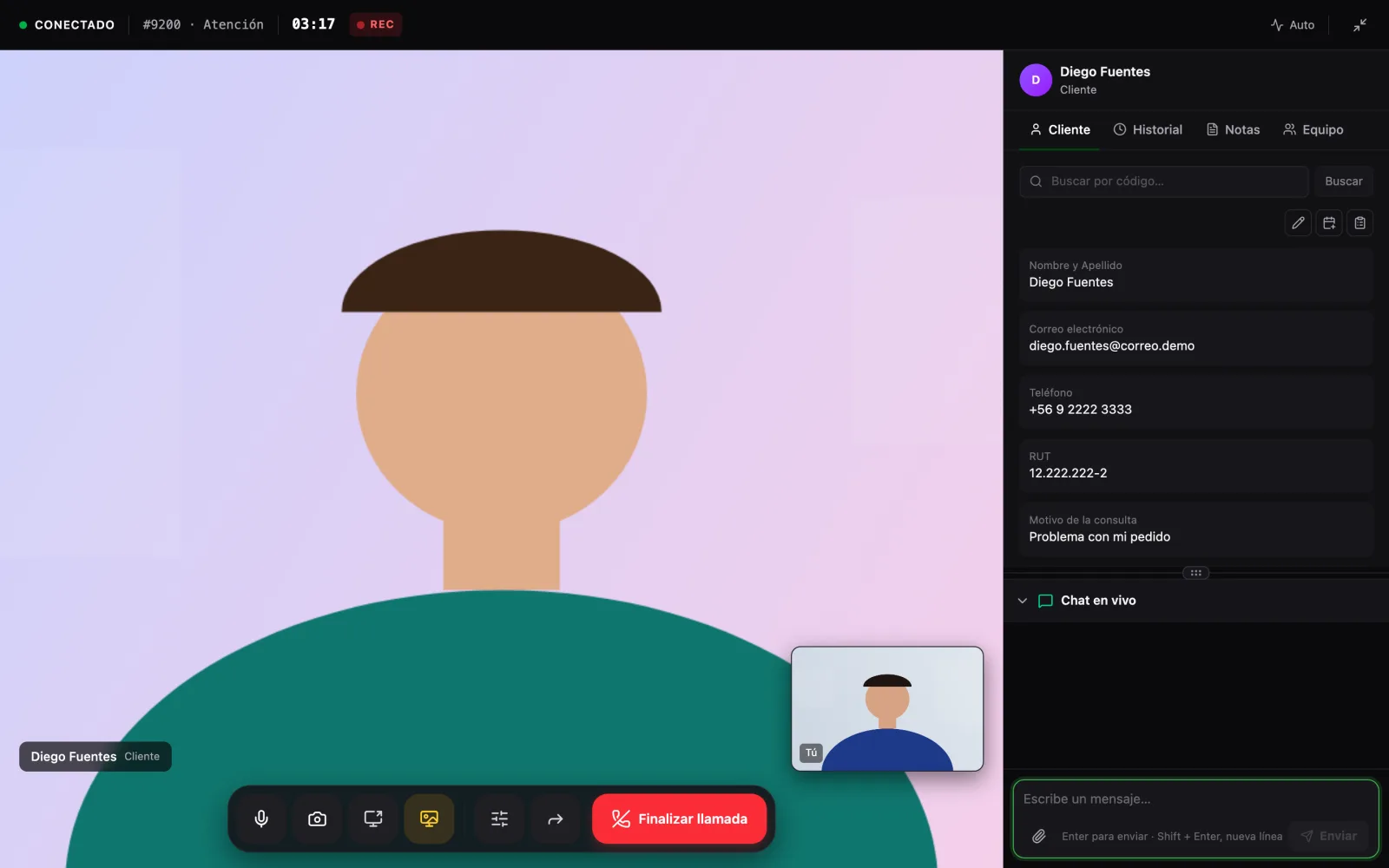
The customer panel
On the right you have four tabs:
Customer: the details the customer filled in. From here you can edit them,Book appointment for this customer,Create follow-upor search for a follow-up by its code.History: their previous calls.Notes: an internal note about the call. It saves automatically; you'll seeSaved.Team: your connected colleagues, to message them or transfer the call to them.
Captions (depending on your account): if your account has transcription, you'll see Transcribing and you can show or hide the captions of the conversation.
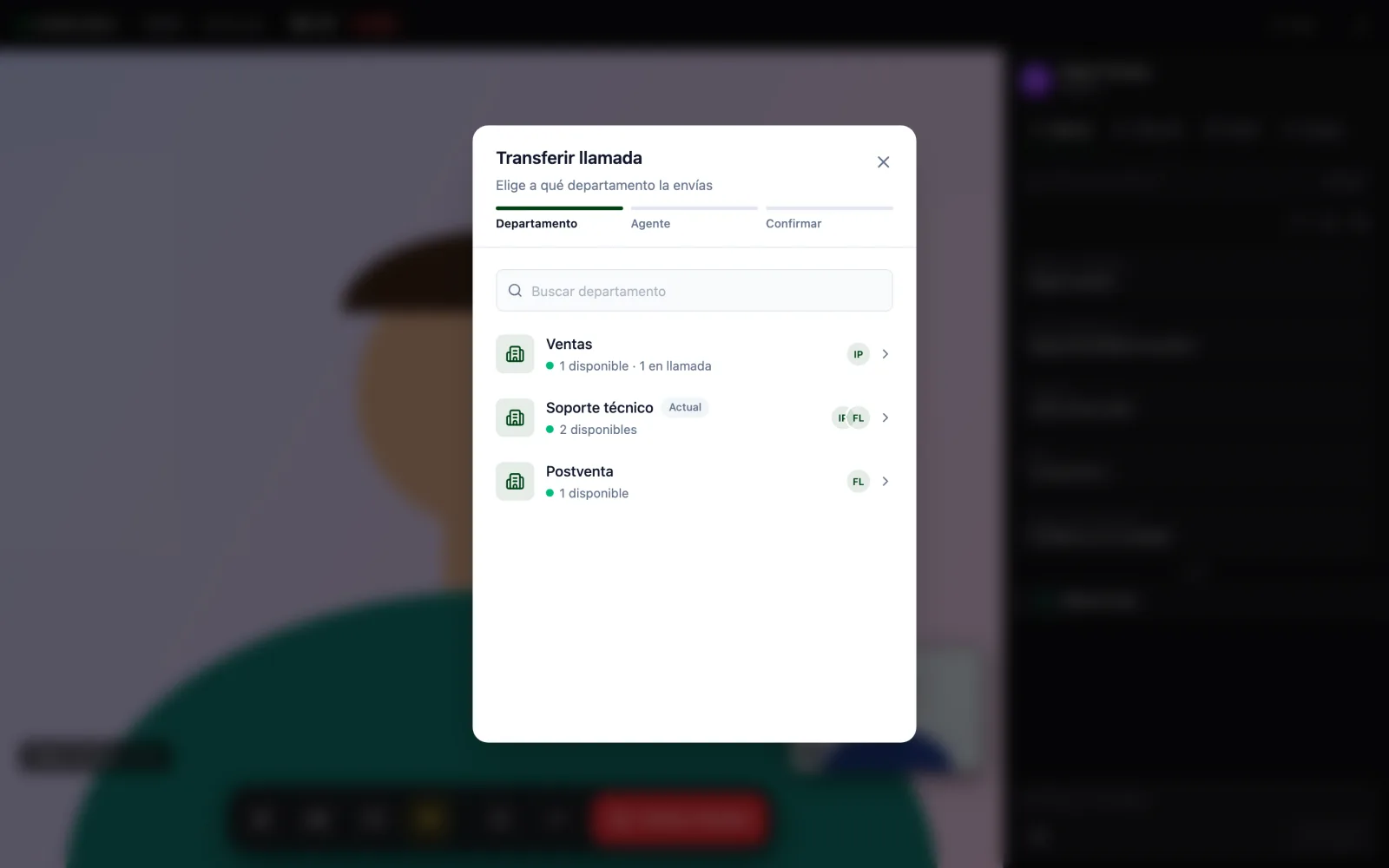
Transferring a call
- Press
Transfer. - Choose the department. Each one shows how many agents are available or on a call.
- Choose
Anyone in the department(the first agent to become free takes it) or a specific person. - Confirm with
Transfer. The customer stays in the room, the call is not dropped, and you leave the call.
Virtual background and devices
The background button opens a panel with a preview that only you can see. Choose blur or an image and press Apply; Remove background is immediate. If your computer can't sustain the effect, Human turns it off and lets you know. The settings button opens Devices to change microphone or camera without reconnecting.
Minimizing and keeping on working
With Minimize the call becomes a floating window that you can drag and resize. In the meantime you can review the history, create a follow-up or book an appointment. The window keeps the microphone, the camera, the counter of messages from the customer and the button to return to full screen.
Ending the call
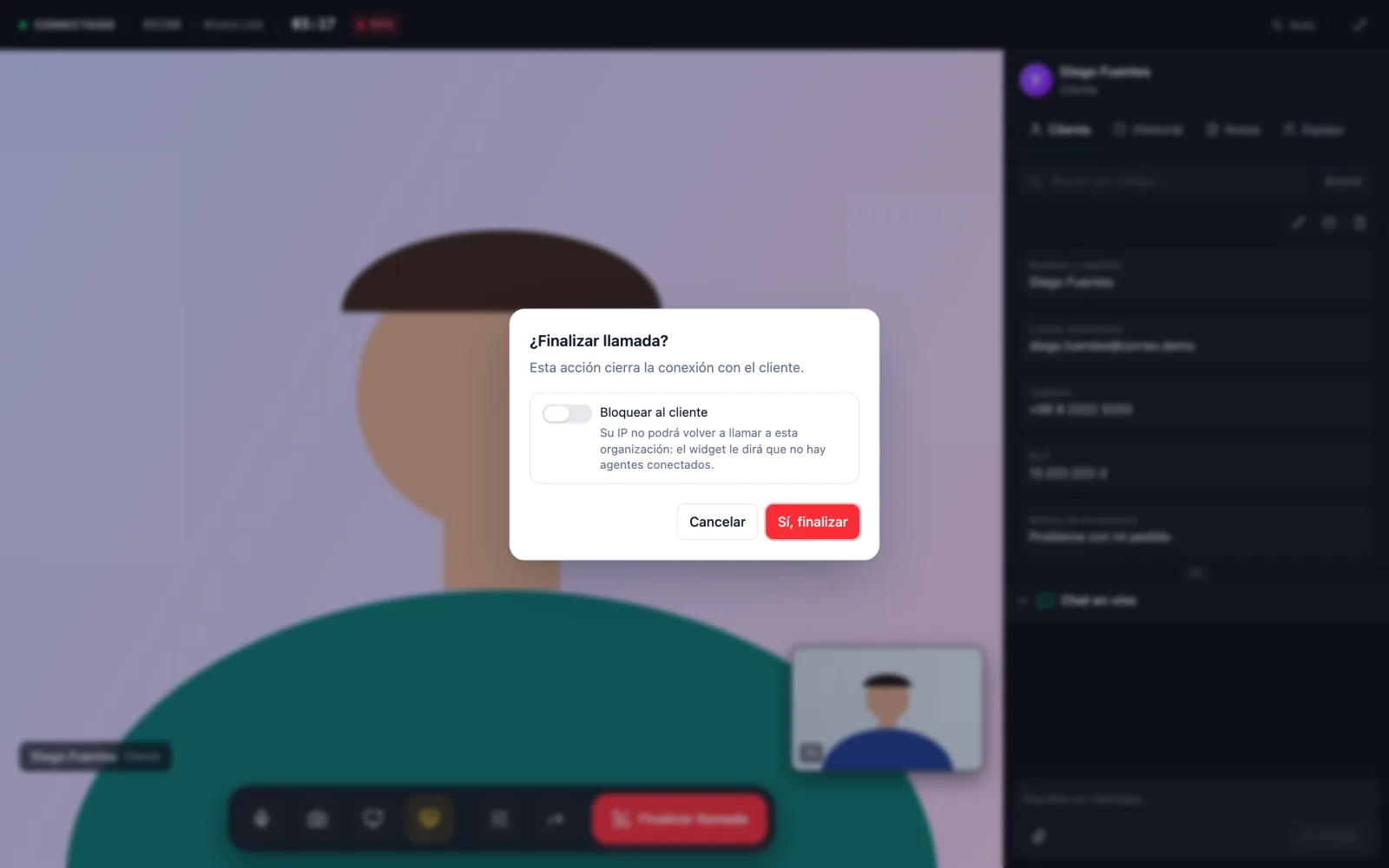
- Press
End calland confirm withYes, end. - If the customer behaved abusively, check
Block customerbefore confirming. The button changes toEnd and blockand that customer will no longer be able to call your organization. - Human asks whether you want to create a follow-up. Choose
Yes, createorNot now. If you never use it, checkDon't ask again.
If the customer is the one who hangs up, the call closes by itself and you return to the history.
No problem: when the page loads again, Human recovers the active call and reconnects you.